
Account capabilities
Understand the capabilities available on your PayMongo account (payment methods, wallet, subscriptions, capital, and linked accounts) and how to activate each.
What are the capabilities of your account?
Capabilities are the features and products your PayMongo account can access. They expand as you complete verification steps and request activation for specific products.
Your account's capabilities depend on your current verification and activation status. This page covers each capability group — what it is, who it's for, and how to activate it.
List of product groups
- Payment methods — Accept payments through cards, e-wallets, direct debit, and more
- Wallet — Send funds to banks and e-wallets via InstaPay or PESONet
- Subscriptions — Enable recurring payments on supported methods
- Capital — Access working capital backed by your daily payment flows
- Linked accounts — Manage child accounts and split payments
Tracking your capabilities and requests
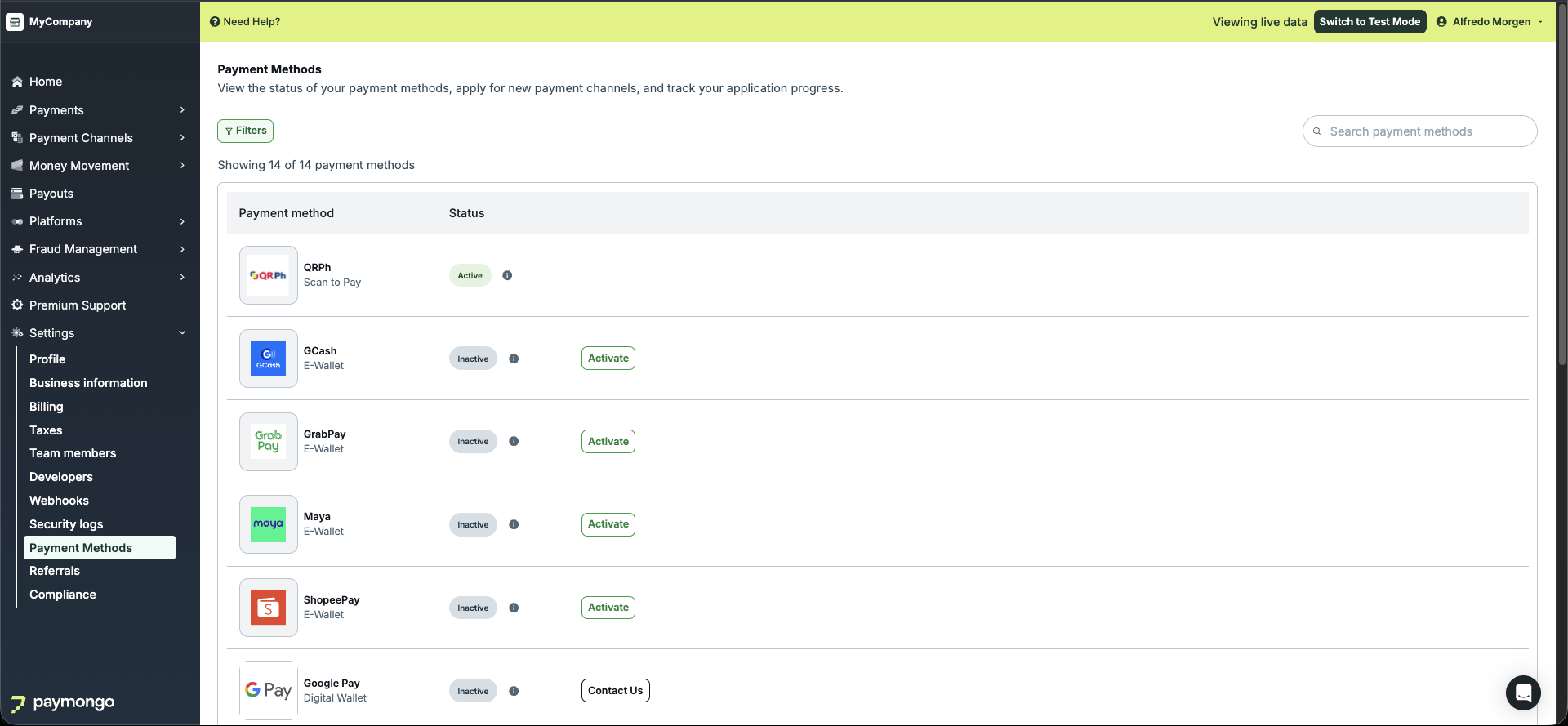
The Settings > Payment Methods page in the Dashboard shows a status badge next to each payment method, indicating where your request stands.
| Status | What it means |
|---|---|
| Active | The capability is enabled and ready to use. |
| Inactive | Not yet requested — you can activate it or contact support. |
| Submitted | Your application is in queue and will be reviewed soon. |
| Under Review | Your application is being reviewed by the onboarding team. |
| Pending Clarification | PayMongo will contact you via email regarding an issue with your submission. |
| Processing | Your application is being processed — timelines may vary depending on the payment partner. |
| Declined | Your application was not approved — contact [email protected] for next steps. |
The Payment Methods page is only available in live mode. Switch to live mode to view your payment method statuses.
Processing times listed per capability below are estimates and may vary based on document review and payment partner approval.
For wallet enablement status, check the banner on the Money Movement > Wallets page.
Payment methods
What and who is this for?
This is those who wants to accept multiple payments options. Payment methods determine how your customers can pay you — cards, e-wallets, direct debit, QR, and buy-now-pay-later. This is for any merchant who wants to accept payments beyond the default QR Ph.
Payment methods are managed from Settings > Payment Methods in the Dashboard (live mode only).
How to activate?
Your wallet must be Enabled before the Activate button appears on the Payment Methods page. If you see "Enable your wallet" next to every payment method, complete the wallet enablement first.
If you registered as an Individual and have selected your business type, self-service activation is available. Otherwise for Maya, GrabPay, and ShopeePay only. GCash and Visa & Mastercard require contacting support.
For self-service methods (after your wallet is Enabled):
- Go to Settings > Payment Methods in the Dashboard
- Find the payment method you want to enable
- Click Activate
- Select your business type (skipped if already selected)
- Fill out the business information form and upload required documents
- Review your submission, then click Submit
- Track status on the Payment Methods page
For methods that require manual request (see table below), email [email protected].
Requirements
Payment method activation requires submitting business documents that vary by your entity type. See Account setup — Verification requirements by entity type for the full list of documents required for your business type.
List of capabilities with estimated processing time
Enabled by default:
| Payment method | Type | Notes |
|---|---|---|
| QR Ph | Scan to Pay | Activated automatically on account activation — no action needed |
Self-service activation (via Dashboard):
| Payment method | Type | Estimated processing time |
|---|---|---|
| GCash | E-Wallet | 3–7 business days |
| GrabPay | E-Wallet | 3–7 business days |
| Maya | E-Wallet | 3–7 business days |
| ShopeePay | E-Wallet | 3–7 business days |
| Visa & Mastercard | Card | 5–10 business days |
Manually requested (contact [email protected]):
| Payment method | Type | Estimated processing time |
|---|---|---|
| BillEase | Pay Later | 2–3 business days |
| BDO (via Brankas) | Direct Debit | 1–3 business days |
| BPI | Direct Debit | 1–3 business days |
| Google Pay | Digital Wallet | 5–10 business days (1–3 if cards already active) |
| Landbank (via Brankas) | Direct Debit | 1–3 business days |
| Metrobank (via Brankas) | Direct Debit | 1–3 business days |
| RCBC (via Brankas) | Direct Debit | 1–3 business days |
| UBP | Direct Debit | 1–3 business days |
Checking payment method capabilities via API
You can check which payment methods are currently active on your account using the API:
GET /v1/merchants/capabilities/payment_methodsThis returns an array of payment method identifiers that are currently configured (for example, ["card", "gcash", "qrph"]). Methods that are not yet configured will not appear in the response.
Authenticate with your secret API key (sk_live_* or sk_test_*).
Wallet
What and who is this for?
Your wallet determines how you can move money out of PayMongo:
- Closed-loop — Send funds to other PayMongo accounts only
- Enabled — Send funds to any bank account or e-wallet via InstaPay or PESONet
This is for accounts that accepts payments where settlements lands to the wallet. Also to those who need to pay out to external bank accounts or e-wallets.
How to activate?
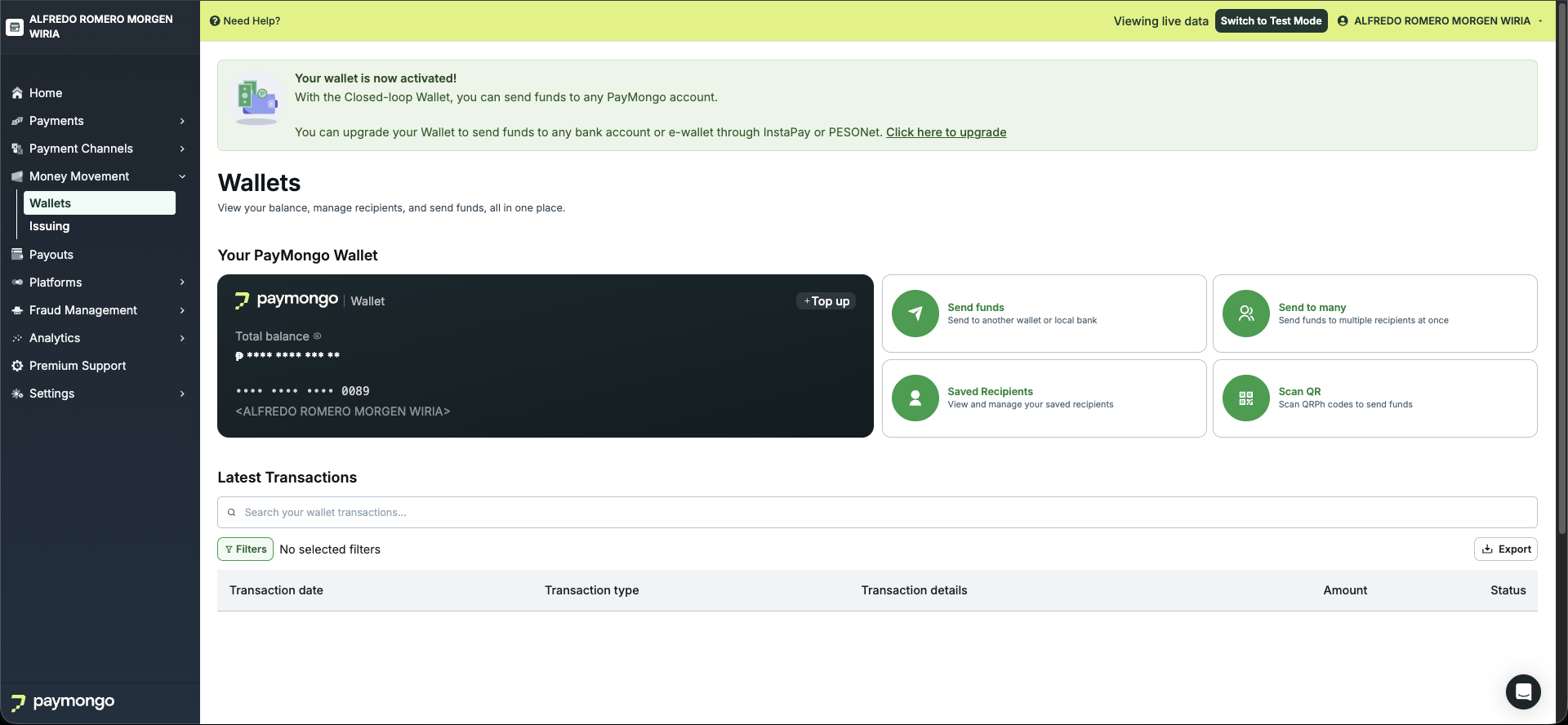
- From the Dashboard sidebar, go to Money Movement > Wallets
- On the wallet banner, click Click here to enable
- Complete the business information form and submit
What happens next depends on whether you have completed identity verification (liveness check):
- If liveness was already passed during account setup, your wallet enables immediately upon approval.
- If not yet passed, the request goes under review (up to 14 business days).
Requirements
Wallet enablement requires:
-
Business information — Complete the business information form (business name, description, industry, address, TIN, and related details). See Account setup — Business profile & business verification.
-
Identity verification (liveness check) — The account owner must complete a biometric and ID verification step. If you have not completed liveness during initial account setup, you can still submit the wallet enablement form, but the request will go under review instead of activating immediately. See Account setup — Identity verification for details.
List of capabilities with estimated processing time
| Capability | Processing time |
|---|---|
| Wallet enablement (Closed-loop → Enabled) | Immediate if liveness passed; up to 14 business days otherwise |
Wallet enablement is self-service from the Dashboard — no need to contact support.
Subscriptions
What and who is this for?
Recurring payments (subscriptions) which allow you to charge customers on a schedule. Subscriptions are supported on Cards, GCash, and Maya.
This is for merchants implementing recurring billing — SaaS, memberships, installments, and similar use cases.
How to activate?
Subscriptions require separate activation from payment method activation — enabling a payment method does not automatically enable subscriptions for it. The payment method is typically activated before subscriptions are enabled for it.
Contact [email protected] to enable subscriptions on your payment methods.
Requirements
The underlying payment method must go through its own activation first. See Account setup — Verification requirements by entity type for KYB requirements related to the payment method.
List of capabilities
| Capability | How to request |
|---|---|
| Card subscriptions | Contact [email protected] |
| GCash subscriptions | Contact [email protected] |
| Maya subscriptions | Contact [email protected] |
All subscription activations are manually requested — no self-service flow is available.
Capital
What and who is this for?
Capital gives you access to working capital backed by your daily eligible sales, with repayments that adjust to your payment flows.
This is for merchants who need funding for business operations. Capital appears in your Dashboard when it has been made available for your account.
How to activate?
Capital is made available by PayMongo on a per-account basis. Contact [email protected] to inquire about Capital availability for your account.
Requirements
No standard KYB requirements specific to Capital beyond having an active PayMongo account. PayMongo determines eligibility internally.
Linked accounts
What and who is this for?
Linked accounts let you invite and manage child accounts and control per-child authorization for split payments.
This is for marketplaces, franchise networks, and Onboarding-as-a-Service use cases. These features appear in the Dashboard sidebar under Linked accounts (formerly Platforms) when enabled for your account.
How to activate?
Linked accounts are enabled by PayMongo. Contact [email protected] to set up your account as a parent account. Soon it will be enabled by default.
See Linked accounts for the parent-child account model.
Updated about 4 hours ago