
API keys
Generate, rotate, and revoke API keys — and best practices for keeping credentials secure across test and live environments.
API keys are credentials that authenticate your requests to the PayMongo API. Every PayMongo account receives four keys upon signup: two for test mode (sandbox) and two for live mode (production). Keys are available immediately—even before your account is fully activated.
Key types
| Key | Prefix | Environment | Use Case | Security Level |
|---|---|---|---|---|
| Public Test Key | pk_test_ | Sandbox | Client-side (web, mobile, browser) | Safe to expose |
| Secret Test Key | sk_test_ | Sandbox | Server-side only | Keep private—test mode only |
| Public Live Key | pk_live_ | Production | Client-side (web, mobile, browser) | Safe to expose |
| Secret Live Key | sk_live_ | Production | Server-side only | Keep highly private—controls live transactions |
Key difference:
- Public keys (
pk_*) create tokens and payment sources in client-side code. They do not expose sensitive data. - Secret keys (
sk_*) authenticate API requests and allow you to retrieve full transaction and account data. They must be kept private and used server-side only.
Where to find your API keys
- Log in to the PayMongo dashboard
- Navigate to Developers (or API Keys)
- View your four keys (test and live, public and secret)
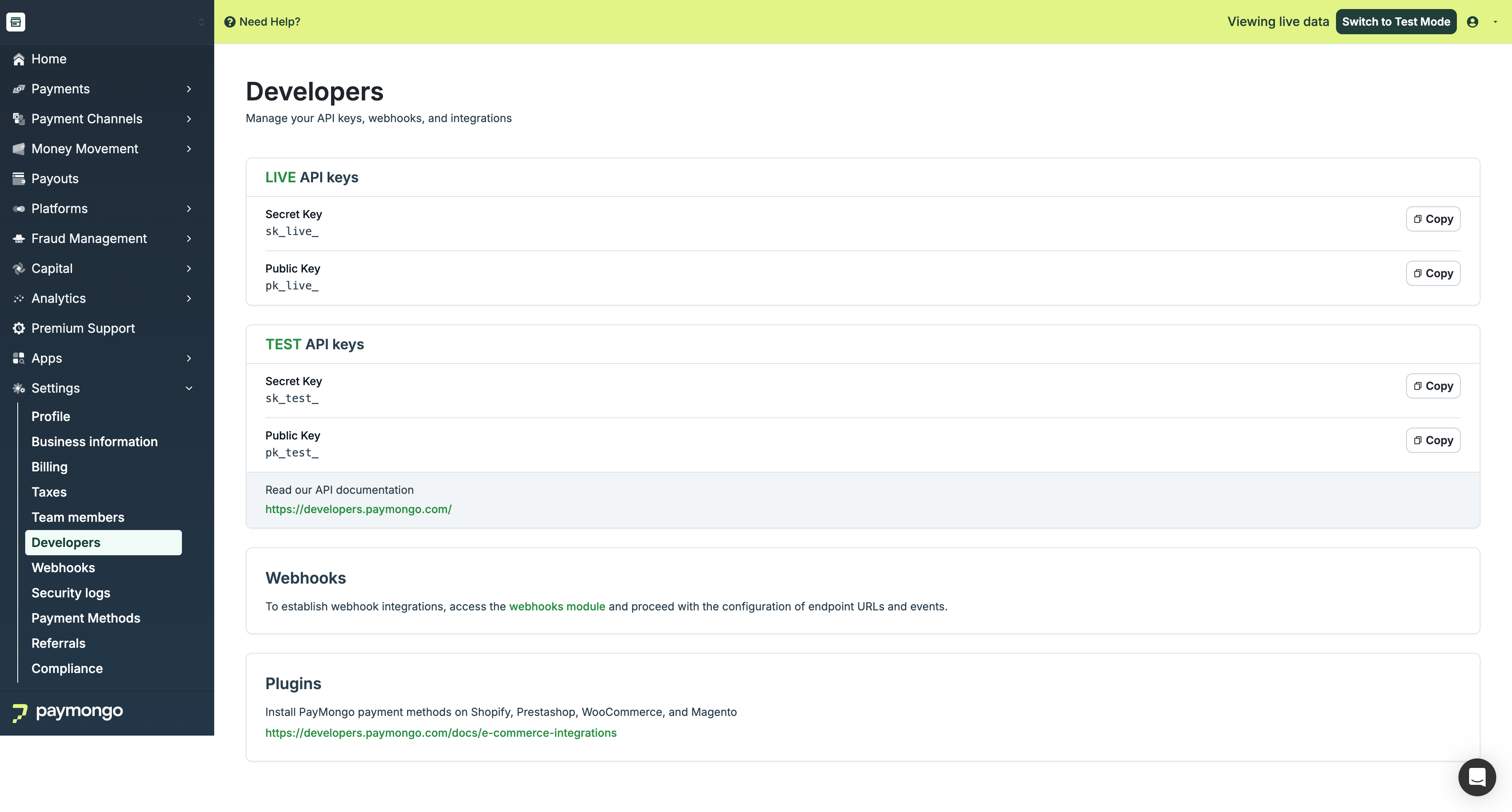
PayMongo Developers section showing all four API keys
All keys are visible here after login and MFA verification.
How to authenticate API requests
PayMongo uses HTTP Basic Authentication. Your secret key acts as the username, with no password.
Example (cURL):
curl https://api.paymongo.com/v1/payment_intents \
  -u YOUR_SECRET_KEY:
Replace YOUR_SECRET_KEY with your actual secret key. The colon (:) at the end leaves the password field blank.
Equivalent header:
Authorization: Basic base64(YOUR_SECRET_KEY:)In code (Node.js example):
const fetch = require('node-fetch');
const key = process.env.PAYMONGO_SECRET_KEY; // Use environment variables

const response = await fetch('https://api.paymongo.com/v1/payment_intents', {
  method: 'POST',
  headers: {
    Authorization: `Basic ${Buffer.from(`${key}:`).toString('base64')}`,
    'Content-Type': 'application/json',
  },
  body: JSON.stringify({
    // request body
  }),
});
Best practices
Security best practices — follow these always:
-
Never expose secret keys in client-side code. Secret keys grant full access to your account and all transaction data. If exposed in a public repository, a GitHub action, or client-side logs, your account is compromised.
-
Use environment variables. Store
sk_*keys in.envfiles (development) or secure secret management (production—e.g., AWS Secrets Manager, GCP Secret Manager). Never hardcode keys in source code. -
Use public keys in frontend code.
pk_*keys are safe to embed in client-side code, mobile apps, and frontend repositories. -
Always use test keys during development. Use
pk_test_andsk_test_for all development, testing, and CI/CD pipelines. Never test against live keys—live keys process real transactions. -
Rotate keys immediately if compromised. When a secret key is exposed (e.g., committed to a public repo, leaked in logs), regenerate it immediately from the dashboard. The old key is invalidated at once, and any integration using the old key will fail.
-
Use different keys for different environments. Use
sk_test_for dev/staging, andsk_live_for production only. Use separate source control branches or secrets management to keep them isolated.
Generating, rotating, and revoking keys
Viewing your keys:
- Log in to the PayMongo dashboard
- Go to Developers
- Your four keys are displayed
API Keys dashboard showing public and secret keys for both test and live modes
Rotating (regenerating) a key
A compromised or expired key can be regenerated to invalidate the old one immediately.
- Go to Developers in the dashboard
- Find the key you want to rotate
- Click Regenerate (or the refresh icon)
- Confirm the action — you will be prompted for MFA verification (OTP)
- The new key is displayed. Copy it immediately. The old key is now invalid.
- Update all systems, servers, and integrations using the old key to use the new one before completing the rotation. If you don't, those integrations will break.
Important: Regenerating a key immediately invalidates the old one. If your integrations still use the old key, they will fail. Update all services before rotating in production.
Revoking a key
PayMongo does not currently offer a "revoke without replace" option. To revoke a key, regenerate it. The regeneration process invalidates the old key and provides a new one.
Next steps
- Multi-Factor Authentication — Secure your dashboard access with MFA
- Security Logs — Monitor account activity and detect unauthorized access
- Account Setup — Create and activate your PayMongo account
Updated about 4 hours ago