
Team & roles
Manage team access on your PayMongo account — invite members, assign roles, and control permissions
How team access works on PayMongo
Instead of sharing a single login, you can invite team members to your PayMongo Dashboard individually and assign each one a set of predefined roles. Each role grants access to specific Dashboard features, so team members only see and use what's relevant to their work.
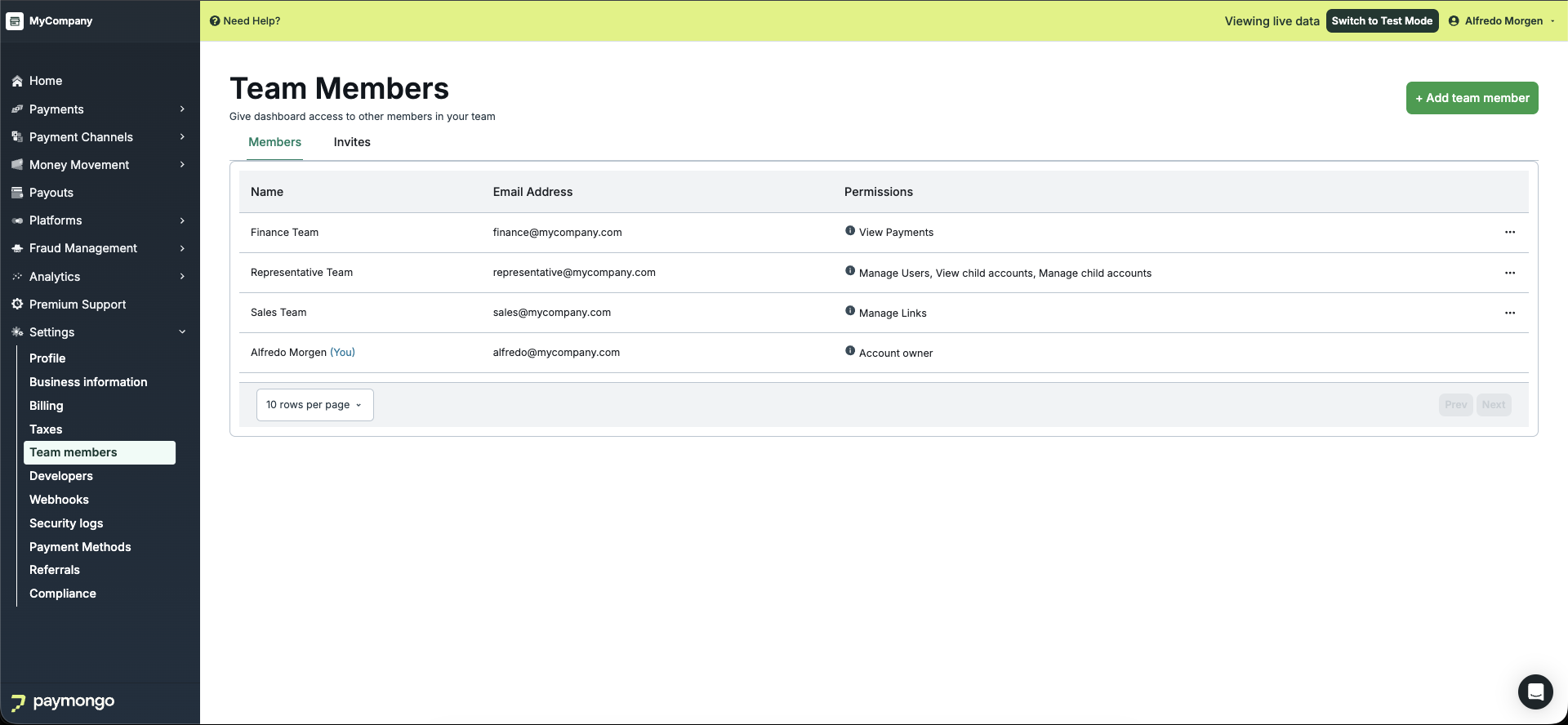
From the Dashboard sidebar, go to Settings > Team members to manage your team. You need the Account Owner or Manage Users role to access this page.
Key concepts
Account Owner
The person who created the PayMongo account, with full access to every feature and setting in the Dashboard. There is only one per account, and this role cannot be transferred or assigned to other team members.
Team members
Anyone invited to the Dashboard by the Account Owner (or by a user with the Manage Users role). Their access is determined entirely by the roles assigned to them, and each team member must have at least one role. See Managing team members for instructions on inviting, editing, and removing team members.
Roles
Predefined permission groups that control what a team member can see and do in the Dashboard. For example, the "Refund & Contest dispute" role grants the ability to view all payments, issue refunds, and contest disputes. Roles are fixed — you cannot create custom roles or modify existing ones. A team member can hold multiple roles at the same time. See Roles & permissions for a breakdown of every role and guidance on choosing the right ones for your team.
Updated about 4 hours ago
Ready to set up your team? See Managing team members to start inviting people to your Dashboard.