
Multi-factor authentication
Email-based one-time password (OTP) verification required at login and for sensitive account actions on every PayMongo account.
PayMongo requires multi-factor authentication (MFA) on all accounts. MFA uses email-based one-time passwords (OTPs) to verify your identity when logging in and when performing sensitive actions.
Key point: MFA is mandatory and cannot be disabled. It's active by default on your account.
When MFA is required
PayMongo requires MFA verification (via one-time password) in these situations:
- Logging into the dashboard — OTP sent to your registered email at each login
- Changing your account email address — Sensitive profile change
- Changing your mobile number — Sensitive profile change
- Updating your payout bank account — Sensitive financial change
- Viewing or regenerating API keys — Critical security credentials
- Other sensitive account changes — Any action that could compromise security or financial data
How MFA works
The typical login flow with MFA:
- Enter credentials: Go to the PayMongo dashboard login page and enter your email and password
- Click Log In: Submit the form
- MFA prompt appears: The dashboard displays a "Verify with one-time password" screen
- Check your email: Look in your inbox (and spam folder) for an email from PayMongo with a 6-digit OTP
- Enter the OTP: Type the code into the prompt
- Click Verify: Submit the OTP
- Access granted: You're logged in and can access your dashboard
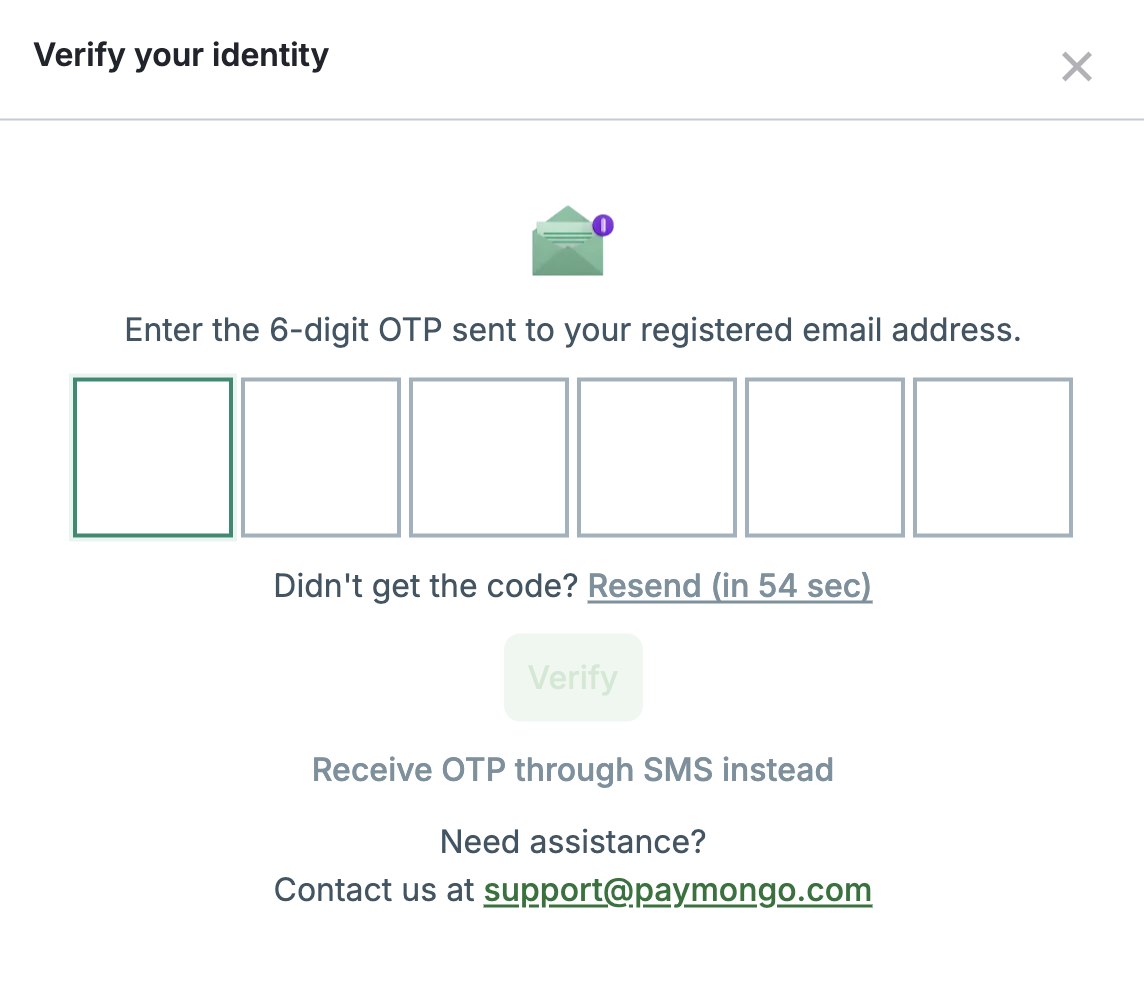
MFA verification prompt showing OTP input field
MFA troubleshooting
OTP not received
- Check your spam, junk, or promotions folder—OTP emails sometimes end up there
- OTPs expire after a short window (typically 10 minutes). If it expired, click Resend OTP on the login screen to request a new one
- If you still don't receive the OTP after multiple tries, your email may be blocked. Contact [email protected]
Lost access to your registered email
- You cannot recover your account on your own. Contact PayMongo support at [email protected]
- Support requires identity verification to confirm you are the account owner before restoring access. Prepare proof of account ownership (e.g., business documents, previous transactions)
- Support will help you regain access after verification
MFA appearing unexpectedly at login
- This is normal. MFA appears on:
- First login from a new device or browser (for security)
- First login after a session expiry (security timeout)
- Anytime you log in (depending on your session settings)
- Enter your OTP and proceed as normal
Incorrect OTP message
- Double-check that you've typed the code correctly (codes are case-sensitive)
- If the code is correct but the system rejects it, the OTP may have expired — request a new one
- Contact [email protected] if you continue to have issues
Note: MFA is separate from Identity Verification (liveness check). MFA protects dashboard access; identity verification determines your wallet capabilities (enabled vs. closed-loop).
Login troubleshooting
If you're having trouble logging into your PayMongo dashboard, refer to this section.
Forgot password
- Go to the PayMongo dashboard login page
- Click Forgot Password? (below the login form)
- Enter your email address
- Check your email for a password reset link (check spam folder)
- Click the link and set a new password
- Return to the login page and log in with your new password
Can't log in — incorrect email or password
- Double-check that you're entering the correct email and password (they are case-sensitive)
- If you've forgotten your password, use the Forgot Password flow above
- Ensure Caps Lock is not on
- Try clearing your browser cookies and cache, then try again
Account locked or flagged
If your account is locked or flagged for security reasons:
- You may see a message like "Account locked" or "Please contact support"
- Contact PayMongo support immediately at [email protected]
- Be prepared to verify your identity
- Support will investigate and help restore access
MFA issues at login
See the MFA Troubleshooting section above for:
- OTP not received
- Lost access to registered email
- Expired OTP
- Other MFA errors
Still can't log in
If none of the above solutions work:
- Contact PayMongo support at [email protected]
- Include details about the error you're seeing
- Be ready to verify your identity (account owner confirmation)
- Support will assist with account recovery
Next steps
- API Keys — Generate and manage your API keys securely
- Security Logs — Monitor account activity and detect unauthorized access
- Account Setup — Create and activate your PayMongo account
Updated about 4 hours ago