
Secure Payments on Shopify
Secure Payments via PayMongo lets you accept cards, e-wallets, online banking, and BNPL on Shopify through a PayMongo-hosted checkout page.
Secure Payments via PayMongo lets you accept multiple payment methods on Shopify through a PayMongo-hosted checkout page, including cards, e-wallets, online banking, and BNPL. Use it when you want to offer more than card payments; choose Express Cards if you only need on-site card payments, or Credit/Debit Card if you need card payments with Hold then Capture.
Installing Secure Payments on Shopify
Once activated, follow these steps to integrate the PayMongo plugin into your Shopify store:
-
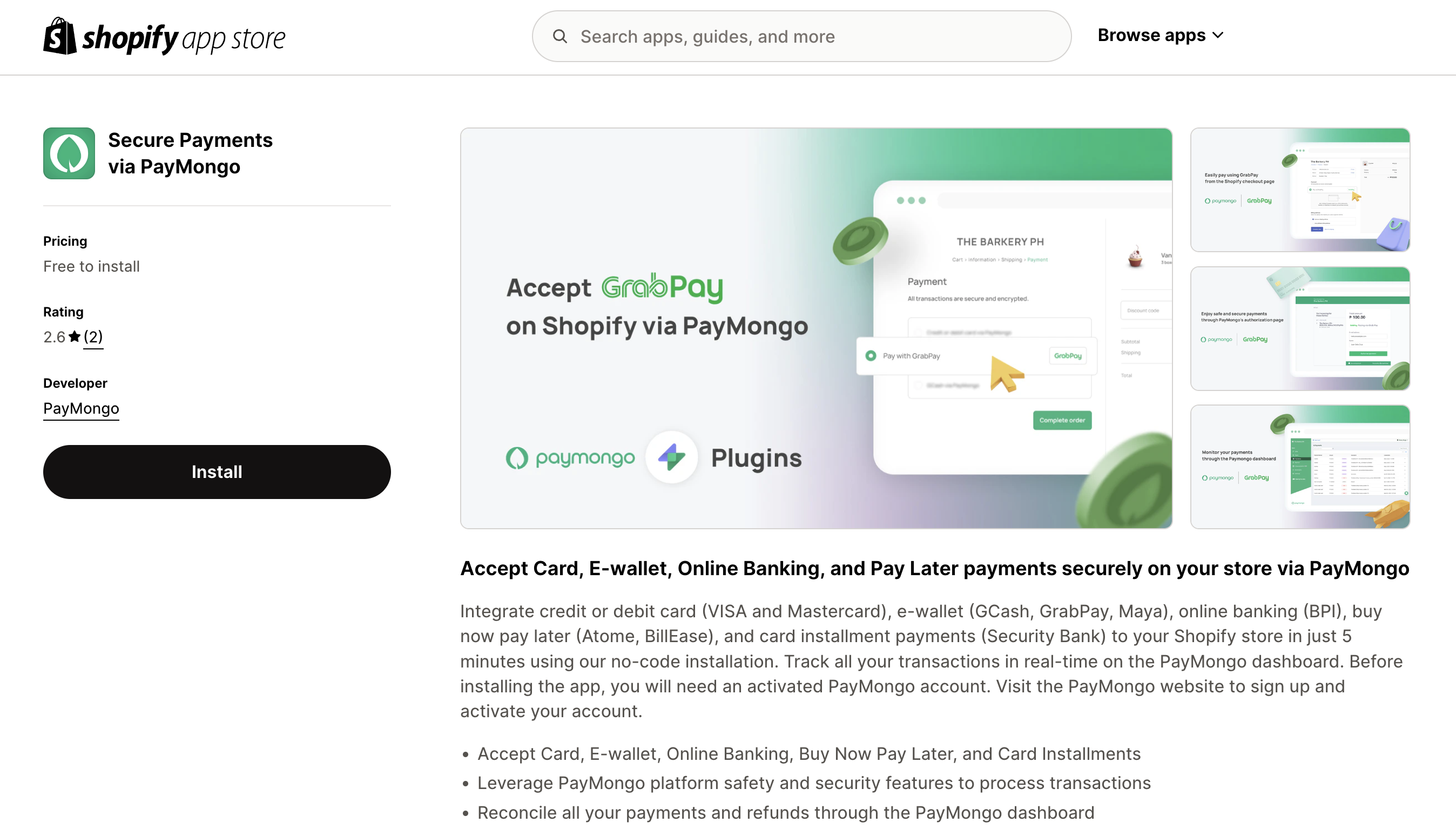
Go to the Secure Payments via PayMongo plugin listing on the Shopify App Store.
-
Click on the Install button. If you aren't logged in to your Shopify account, a prompt to log in will appear. Once you're logged in, you will be redirected to the next step.
-
You'll be redirected to the plugin's PayMongo account connection page. Input your PayMongo public key and secret key, and click on the Connect button. You can find these on the Developer's tab of your PayMongo dashboard.
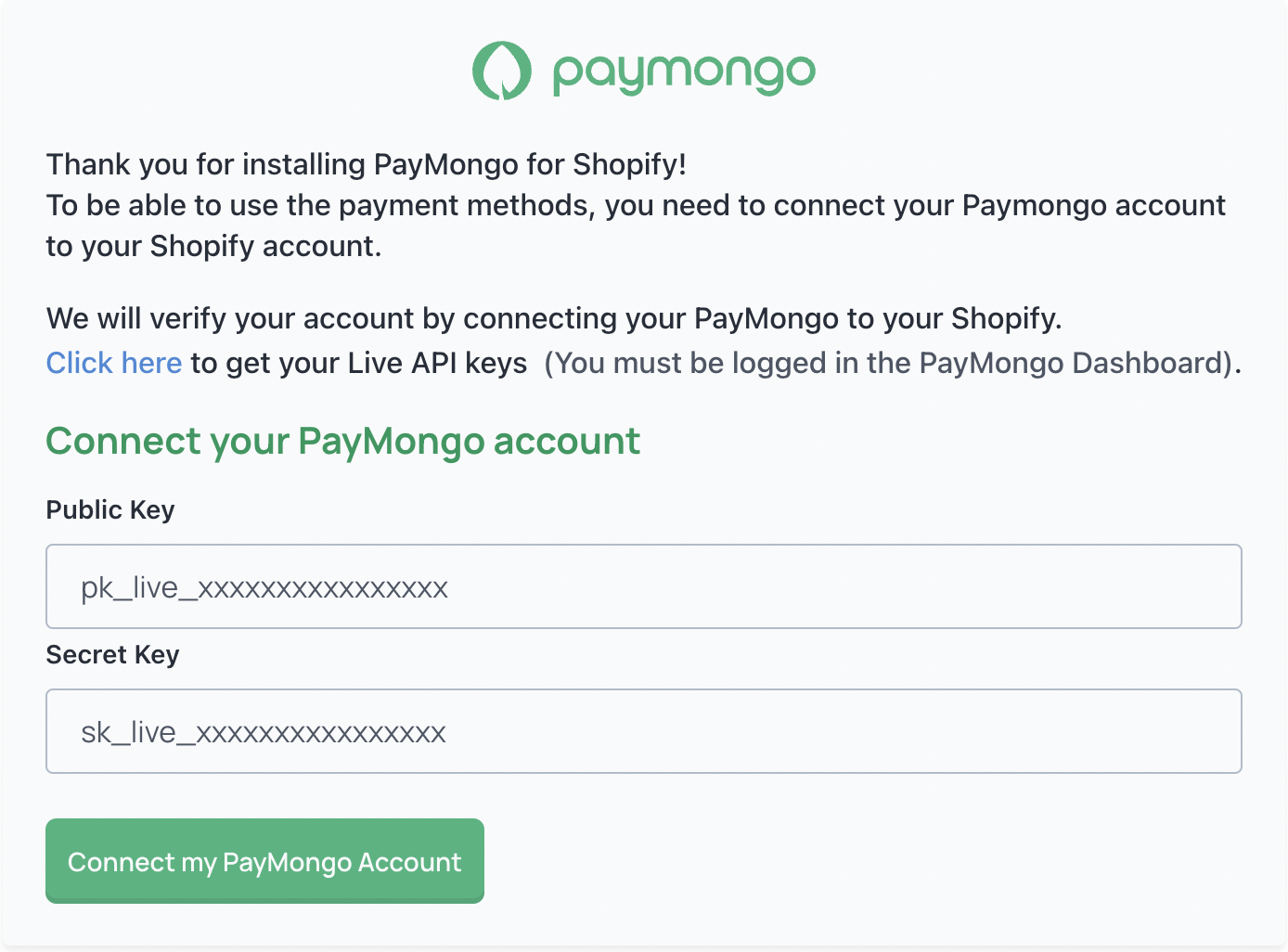
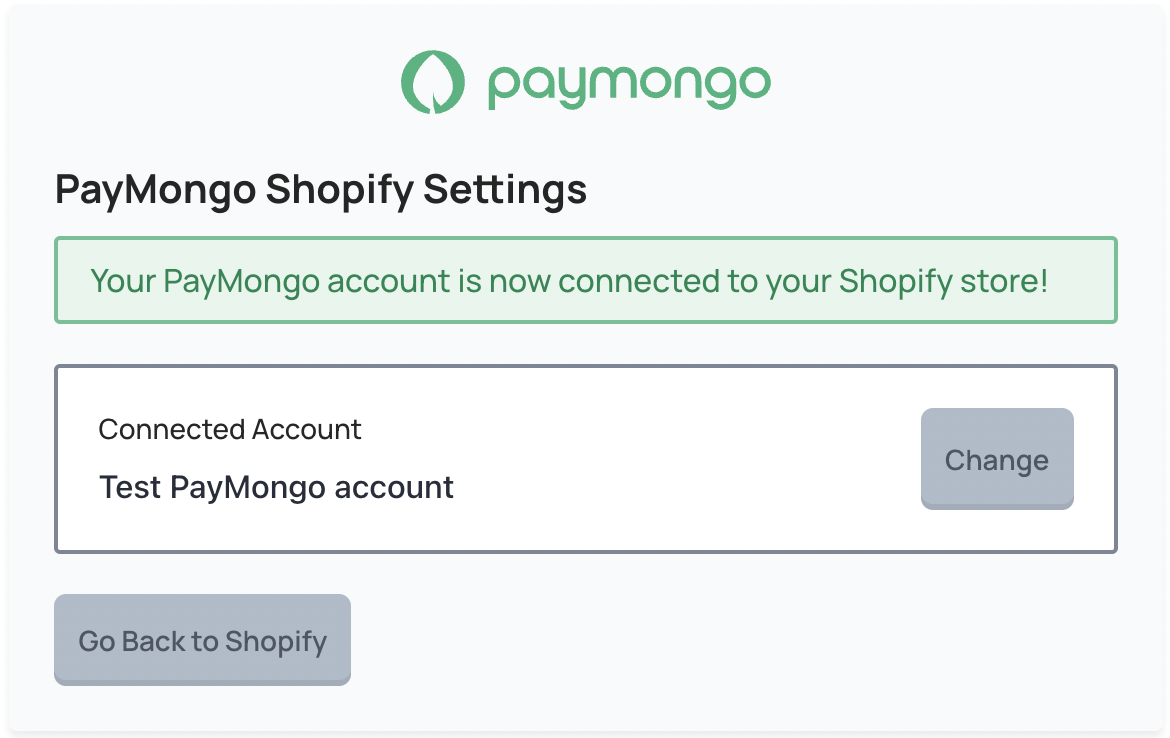
- Upon entering the keys, you'll be greeted with the screen below. Click on the Go Back to Shopify button, and you're done! You should now be able to accept payments via PayMongo on your Shopify store.
- Go to your Shopify settings and continue to the Payment providers section, search for Secure Payments via PayMongo and click "Activate".
You can watch an alternate installation guide video here.
Additional configuration
Editing Payment Methods on your checkout page
If you have multiple PayMongo accounts or you want to opt-in/out of certain payment methods, you can configure your checkout page anytime by clicking the Manage button on "Secure Payments via PayMongo" plugin settings.
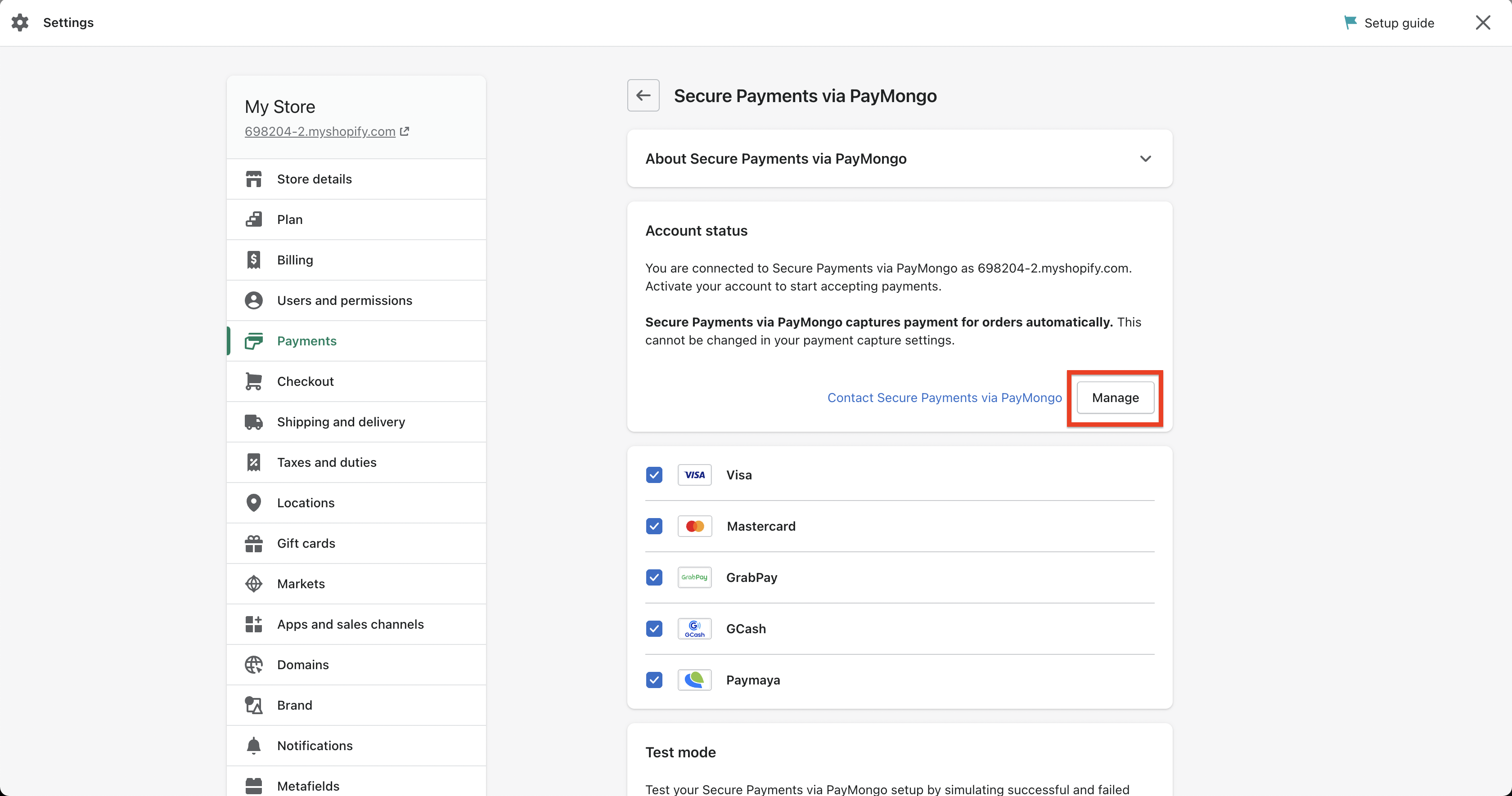
After clicking on Manage, you will be redirected to this screen wherein you can select which payment methods you want to accept in your Shopify checkout or change the PayMongo account associated with your store.
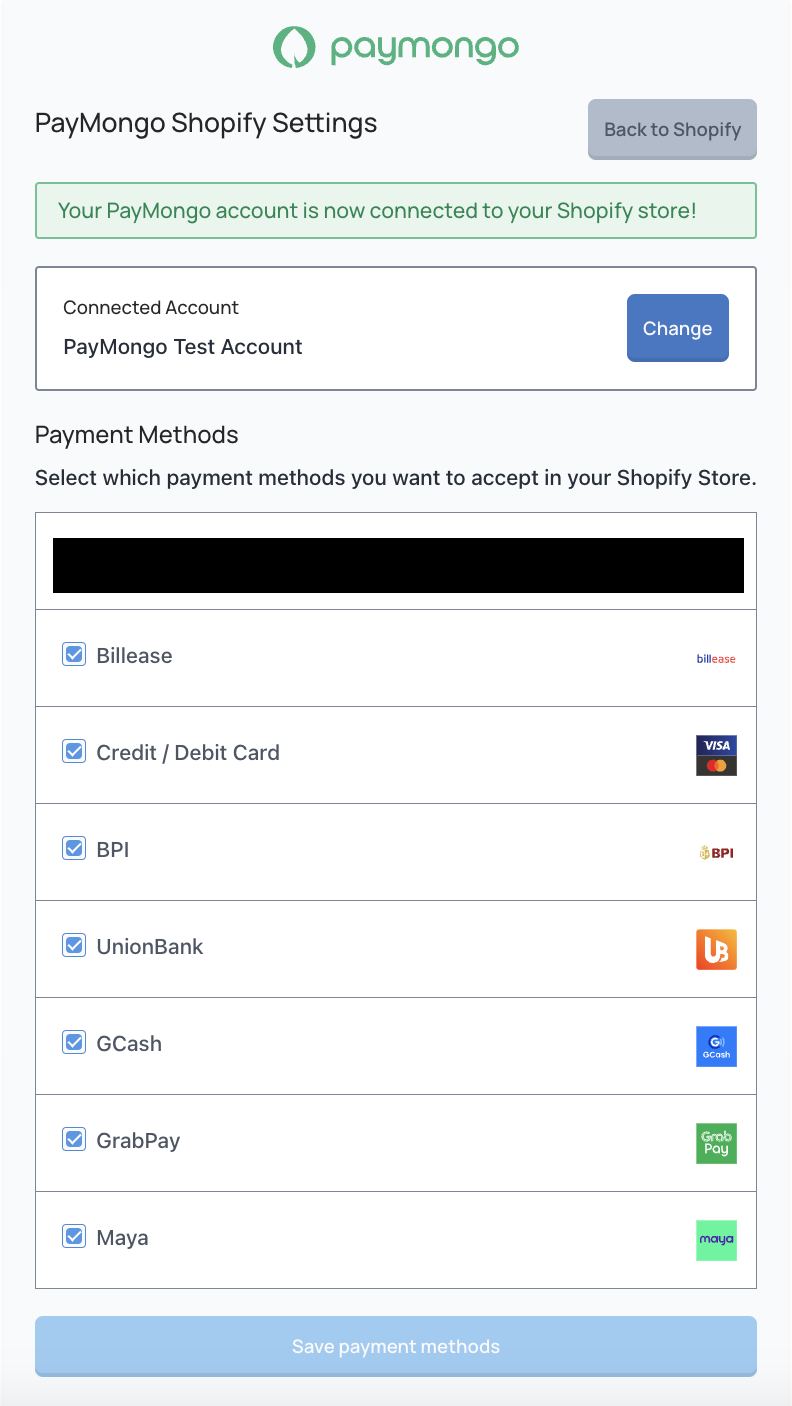
You can then click on the "Save payment method" button to finalize your checkout.
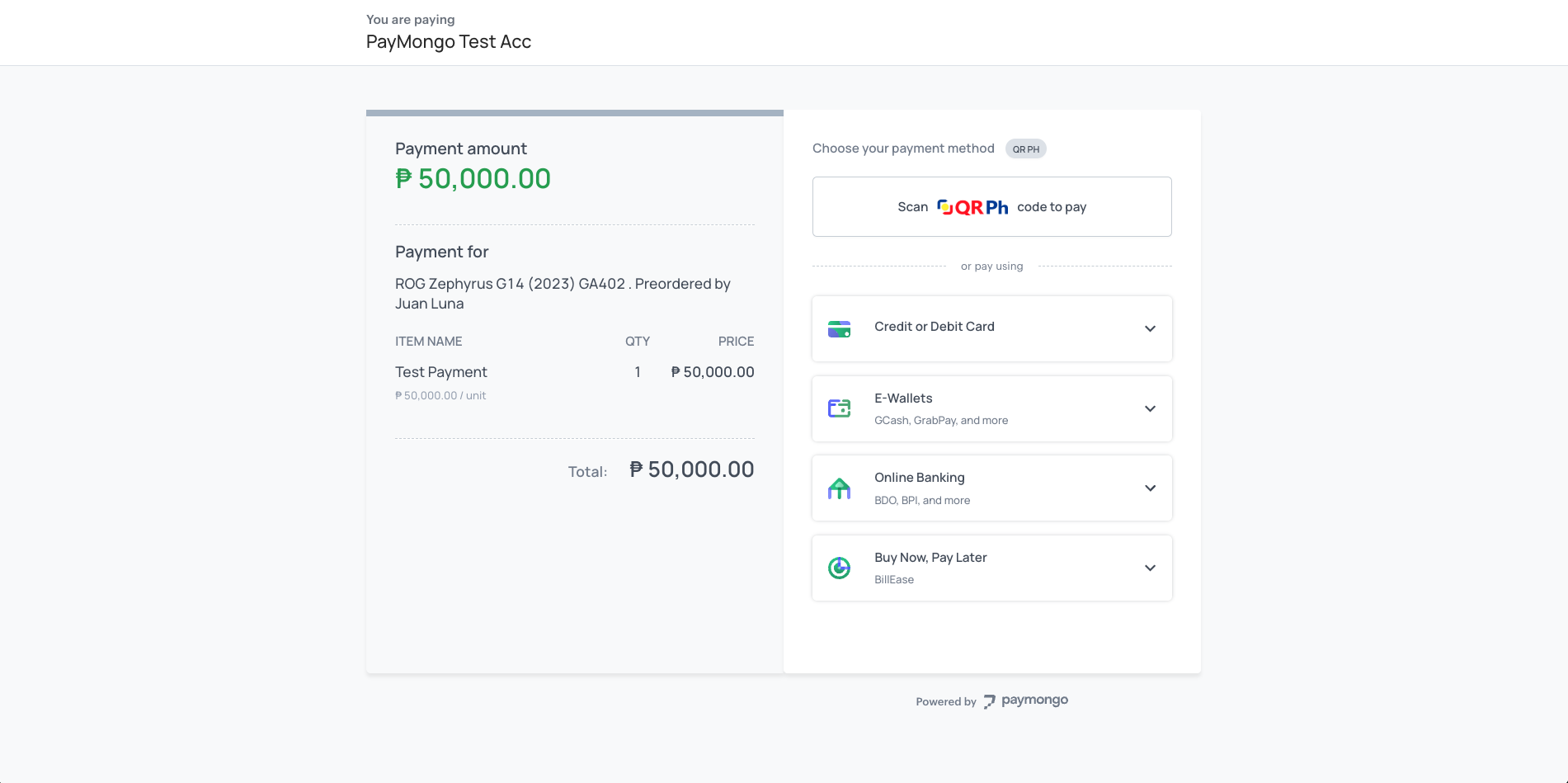
In the example above, this is what the customer will see on the checkout page after saving the updates.
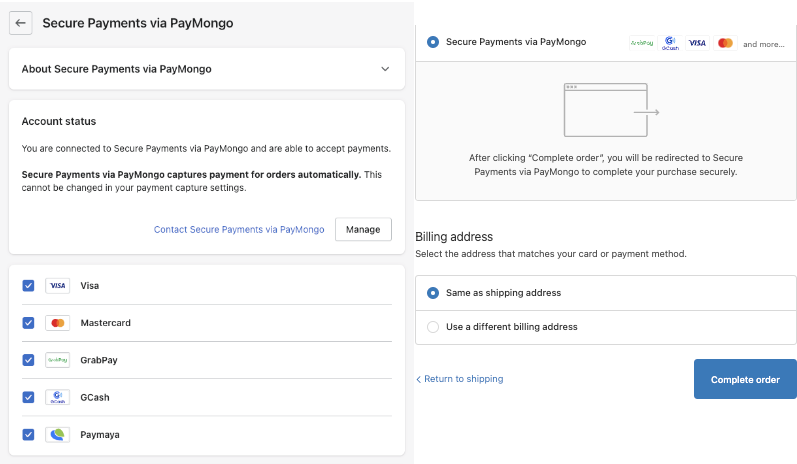
If you've enabled a payment method on your PayMongo dashboard, also check it here. This list controls which payment-method icons appear on the Shopify checkout page (right image), separate from which methods are actually accepted (left image).
Updated 1 day ago