
Pages
What is a PayMongo Page?
Understanding PayMongo Pages
PayMongo Pages are always-on customizable checkout pages that serve as a dedicated online storefront or payment portal for your business.
They're customizable, hosted web pages that you can set up instantly from your dashboard to collect payments. Unlike Links (which are typically for one-off requests), Pages are persistent and can serve as a primary payment gateway for your website or various business needs.
- Ideal for: Collecting payments for products sold or services rendered, ongoing monthly dues, consulting fees, or showcasing a product catalog.
- Customization: You can customize the page title, logo, description, and accepted payment methods.
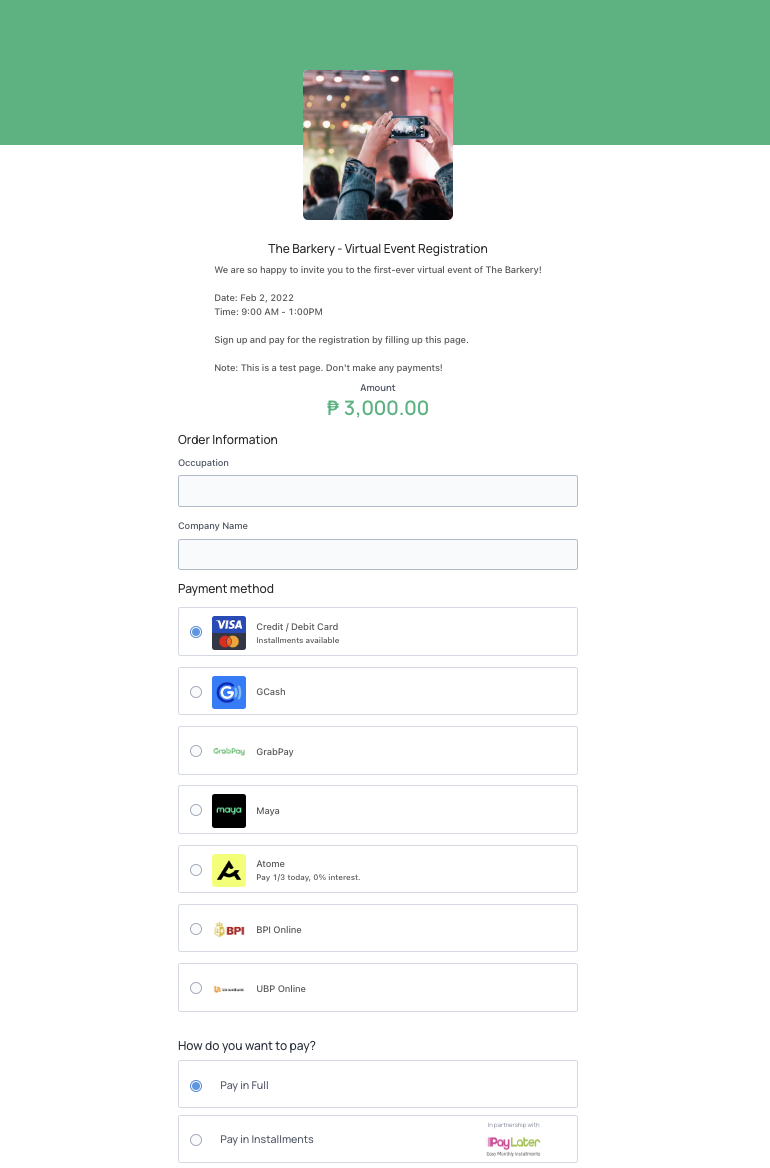
PayMongo Page
Types of PayMongo Pages
PayMongo offers different Page types to suit various collection scenarios:
- Custom Amount: Ideal when you want your customers to enter the payment amount themselves (e.g., donations, variable service fees).
- Fixed Amount: Used when customers need to pay a specific predetermined amount for a single product or service (e.g., a specific course fee).
- Product Catalog: This powerful page type allows you to display multiple products or services, automatically calculating the total basket size for the customer on a single, integrated page.
You can see it in action through these demo pages we created:
Fixed Amount: https://paymongo.page/l/the-barkery-fixed-amount
Variable Amount: https://paymongo.page/l/the-barkery
Getting to Know Your Pages Dashboard
Your PayMongo Pages Dashboard is where you create and manage all your custom checkout pages:
- List View: Displays a list of all created pages with details like Page Title, Amount, Page URL, and Date Created
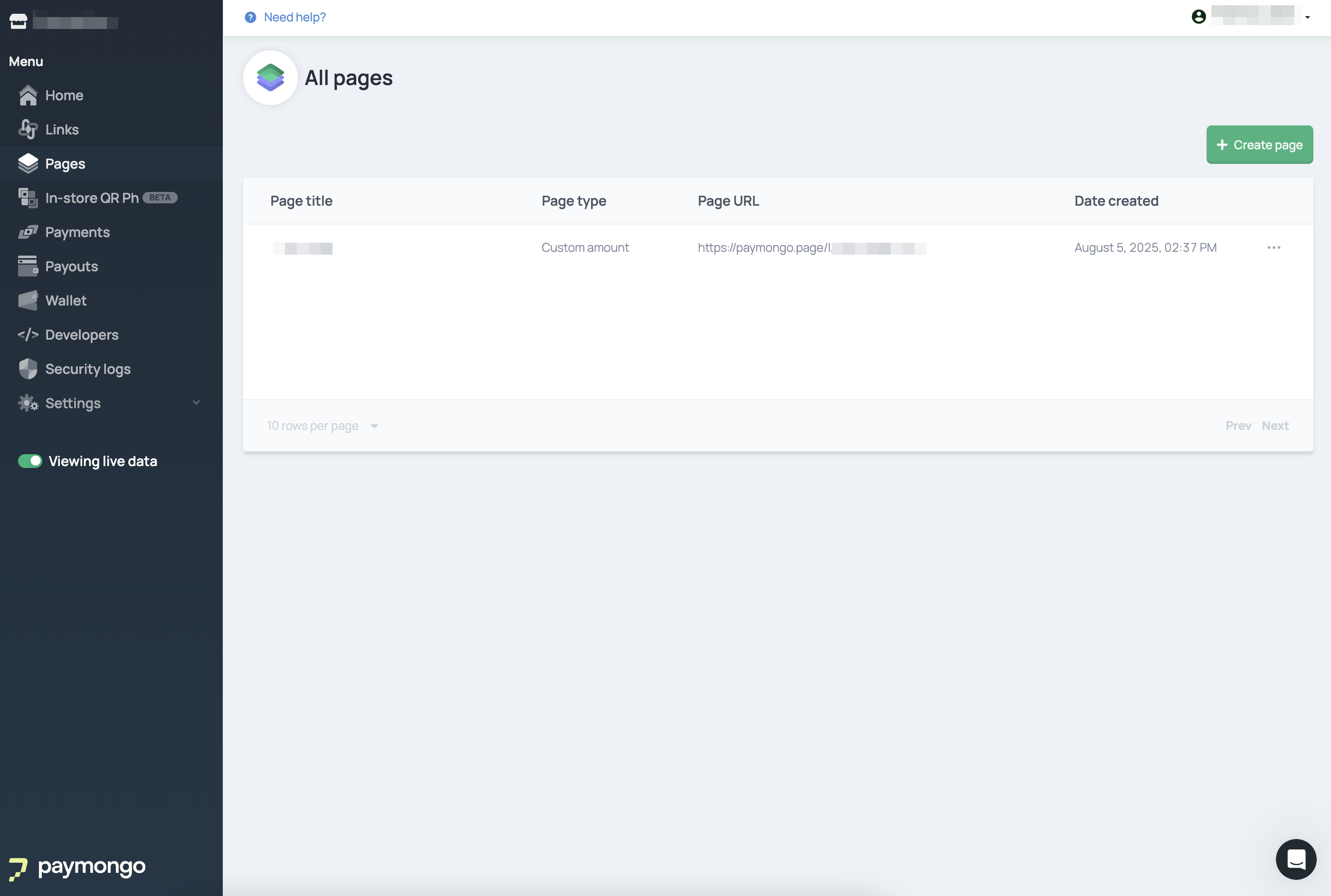
- Page Creation: When creating a page, you can set a Page Title, define a unique Page Slug (which forms part of its URL), upload a page logo (JPG or PNG, under 4MB, square format preferred), and add a detailed Page Description (up to 2000 characters with hyperlink support).
- Preview Feature: Instantly preview your page to visualize changes before saving.
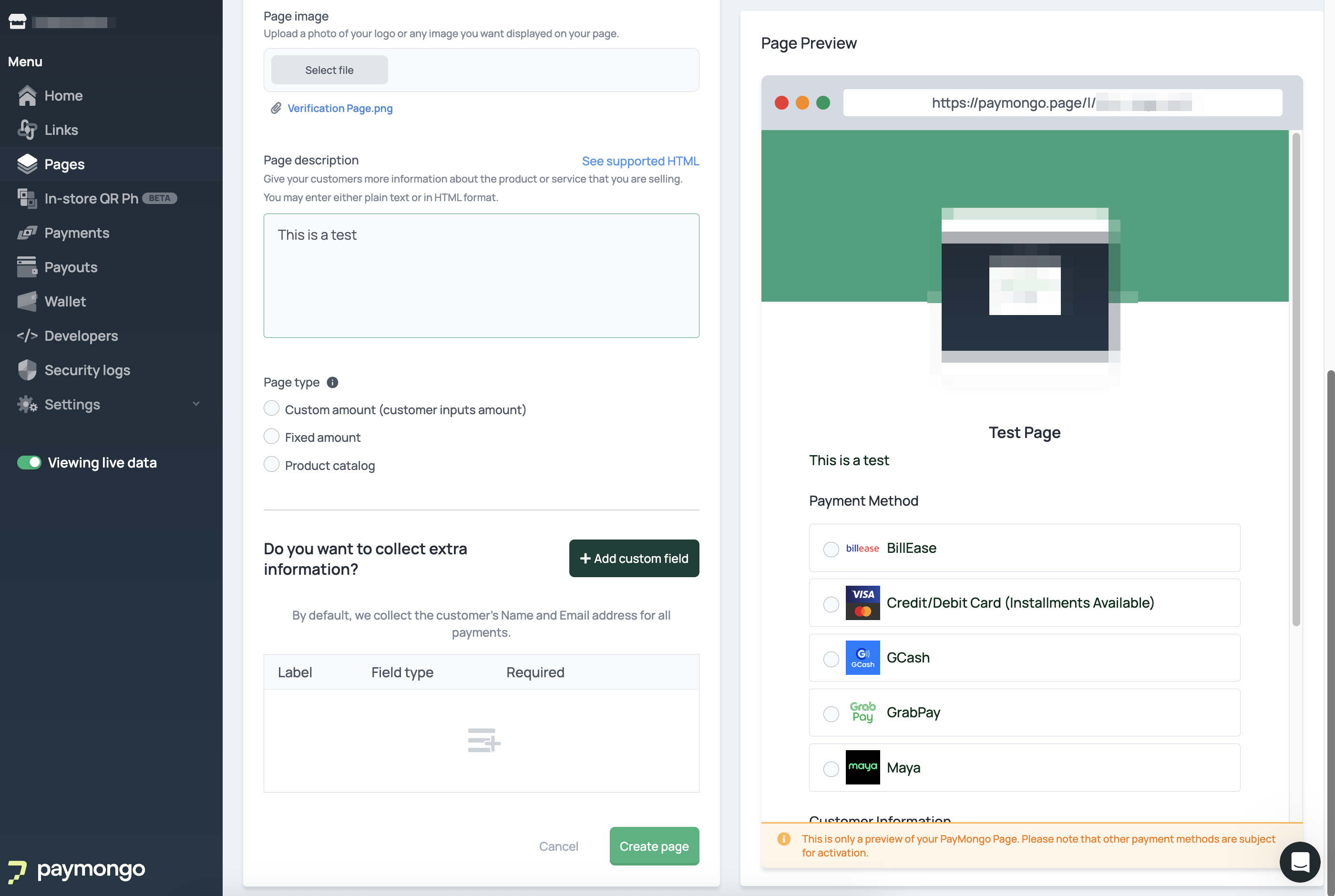
- Modification: Easily modify existing pages, including editing the Page Slug, Page Type, Page Logo, Description, custom fields, and payment methods.
- In-store QR Code Request: From the dashboard, you can also request an in-store QR code for seamless in-person payment collection.
Customizing Payment Methods for your PayMongo Page
You have control over which payment methods are available on your PayMongo Pages:
- In the Pages Dashboard, select the specific Page you wish to modify.
- Click on the pencil icon located next to "Accepted payment methods."
- A list of available payment methods will appear. All activated payment methods are enabled by default. Uncheck the boxes of the payment methods you want to turn off for that specific page.
- Once you have made your selections, click "Save."
- Confirm the changes by clicking "Yes, save changes."
- You can then verify that the payment method has been disabled by checking the available icons on your live PayMongo Page.
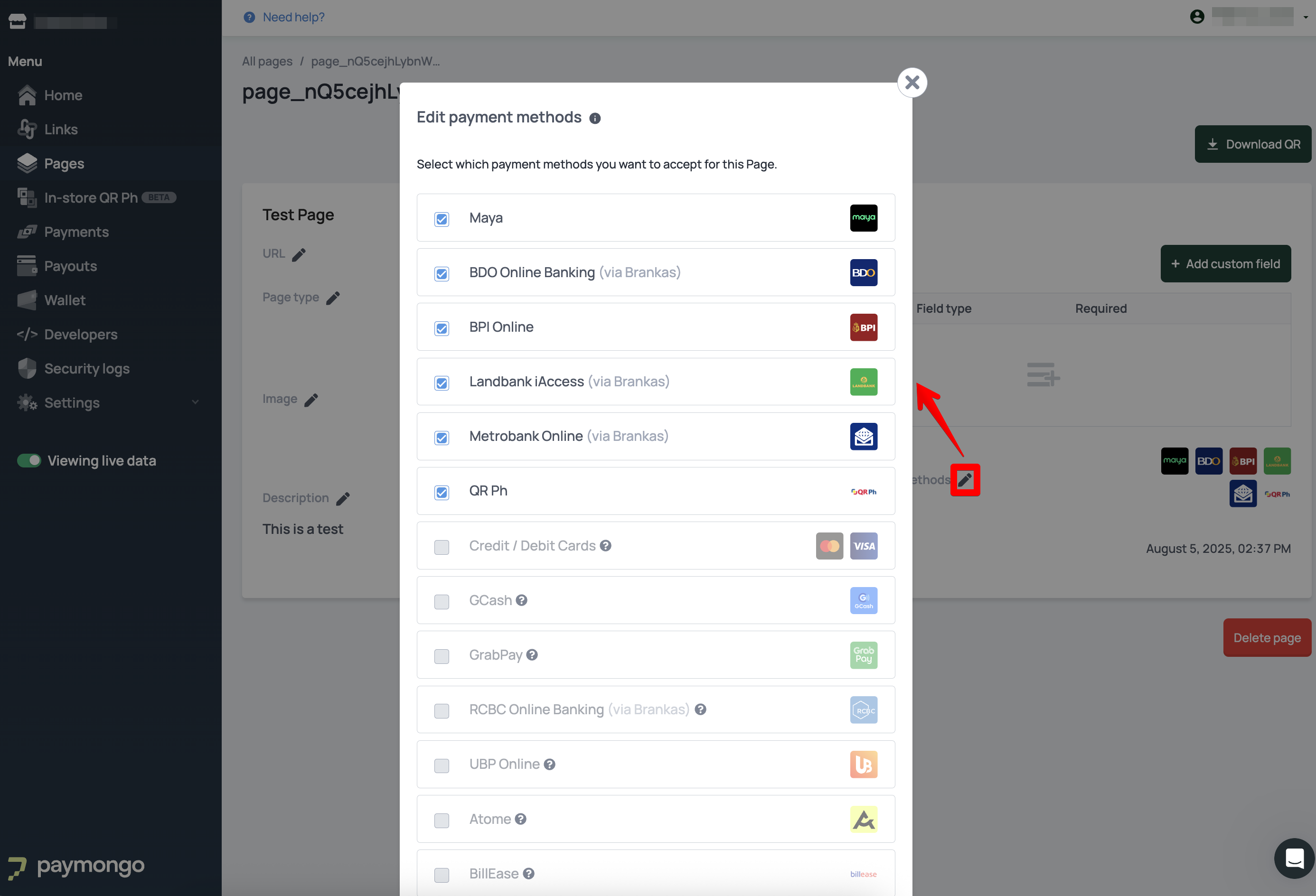
Note: If a payment method appears greyed out, it means it is not yet configured or is disabled at an account level. You can contact [email protected] for more information or to enable additional payment methods for your account.
Things to Note for Payment Flows through Pages
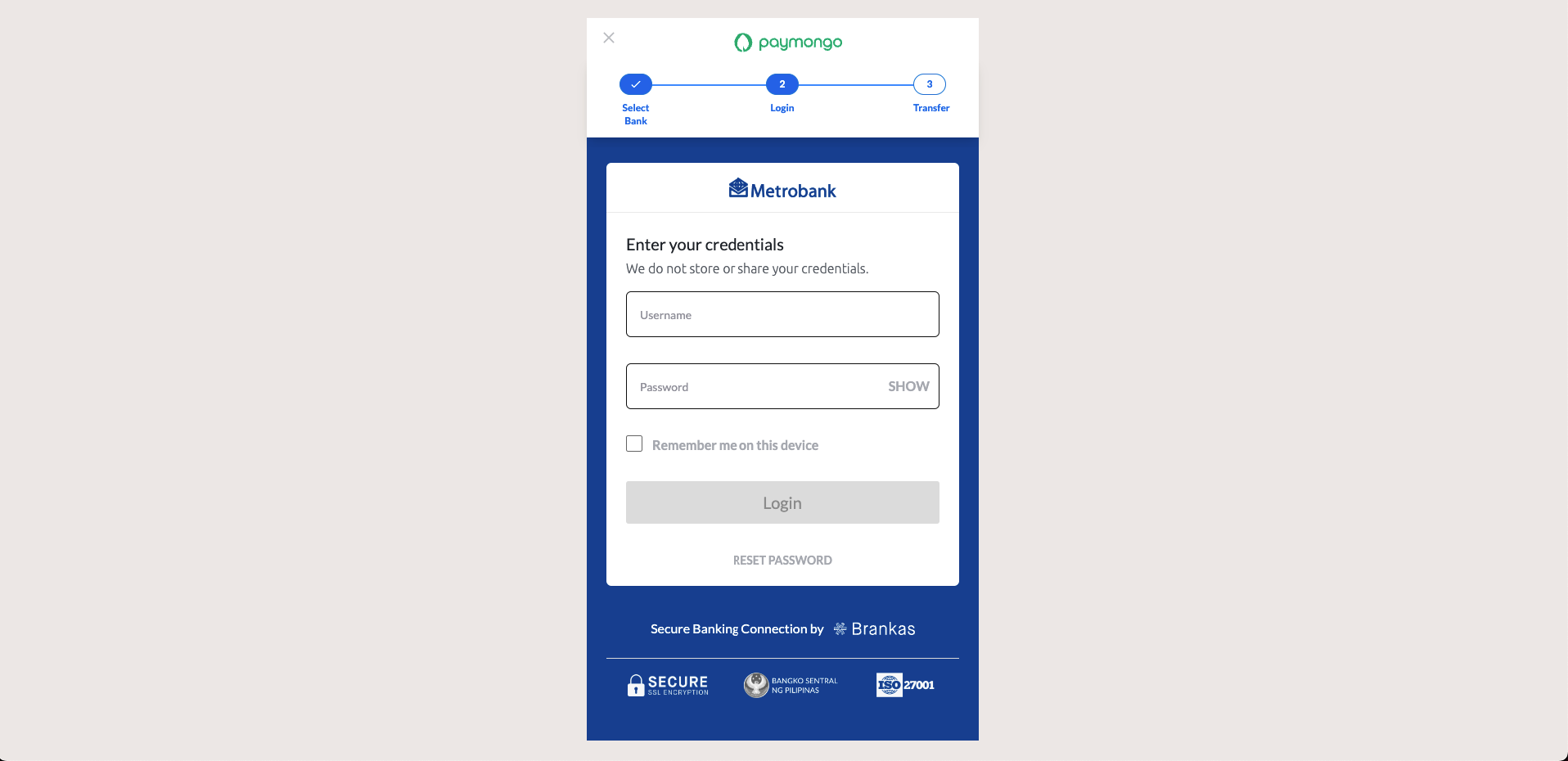
For BDO, Metrobank, and Landbank Direct Online Banking options, your customer will be redirected to the log-in portal of their chosen bank to complete the payment. They will be redirected to the log-in portal of their chosen bank to complete the payment as seen in the page samples below:


Updated 3 months ago