
In-store QR Ph
Learn how to create QR Ph codes and navigate your In-Store QR Ph Dashboard
Overview
In this guide, we will be going through the In-store QR Ph dashboard, its features, and additional notes you will need to maximize our In-store QR Ph Product. To learn more about QR Ph and its features, you may refer to our QR Ph guide.
PayMongo's In-store QR Ph product is one of two types of QR Ph codes that PayMongo offers. It is a reusable static QR Ph code designed primarily for In-store use.
Static QR Ph Code FunctionalityA static QR Ph code is a QR code that is often used in standees, but can be also be shared in digital form. When customers scan a static QR Ph code using their payment app, they will need to enter the amount to be paid.
Getting to Know the In-store QR Ph Dashboard
QR Ph Dashboard AccessibilityThe In-store QRPh Dashboard is only accessible to the account owner of a PayMongo account.
The In-store QR Ph Dashboard is your central tool for managing in-person QR Ph payments.
Navigating the Dashboard
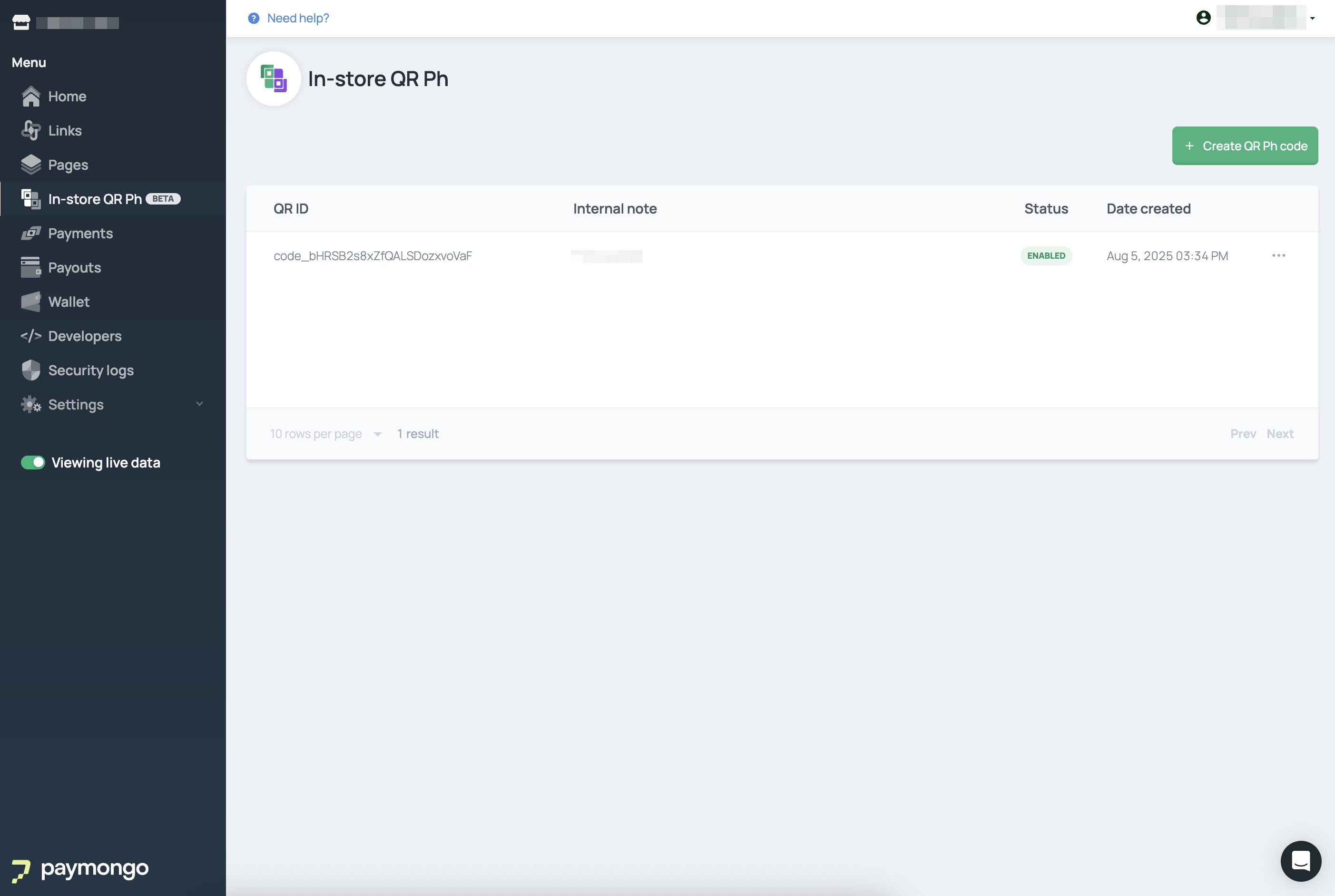
You can access the In-Store QR Ph module from the sidebar of your PayMongo Dashboard. Here, you can:
- View All QR Ph Codes
See a list of all your created QR Ph codes. - Create New QR Ph Codes
Generate new static QR codes for different locations or purposes. - Manage & View Details
Access detailed information about each QR Ph code, including its QR ID, internal notes, and associated mobile number for SMS notifications. - Download QR Ph Standee Images
Get digital copies of your QR Ph standees for printing or digital display.
Notification of Successful Payments
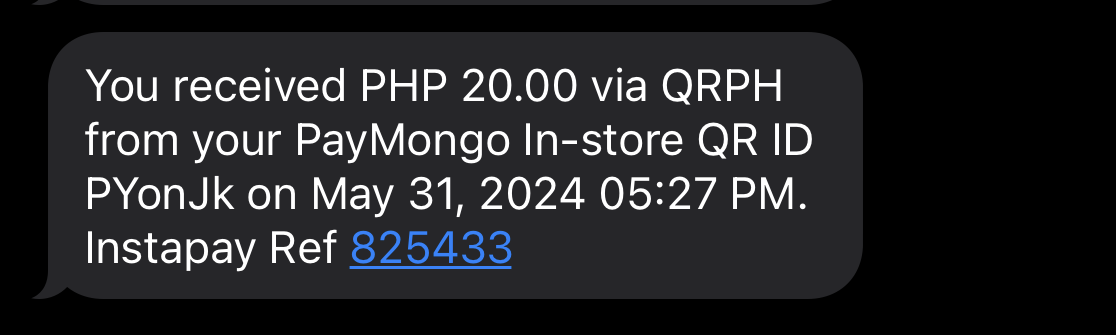
You will be notified of successful In-store QR Ph payments through two primary methods:
- SMS Notification
- If a valid mobile number was nominated when creating your QR Ph code, you will receive an SMS for each successful transaction.
- The SMS includes: payment amount, payment method (QRPH), In-store QR ID (a shortened ID for dashboard search), payment date and time, and the InstaPay reference number.
- Ensure your phone has a proper signal to receive these notifications.
- PayMongo Dashboard
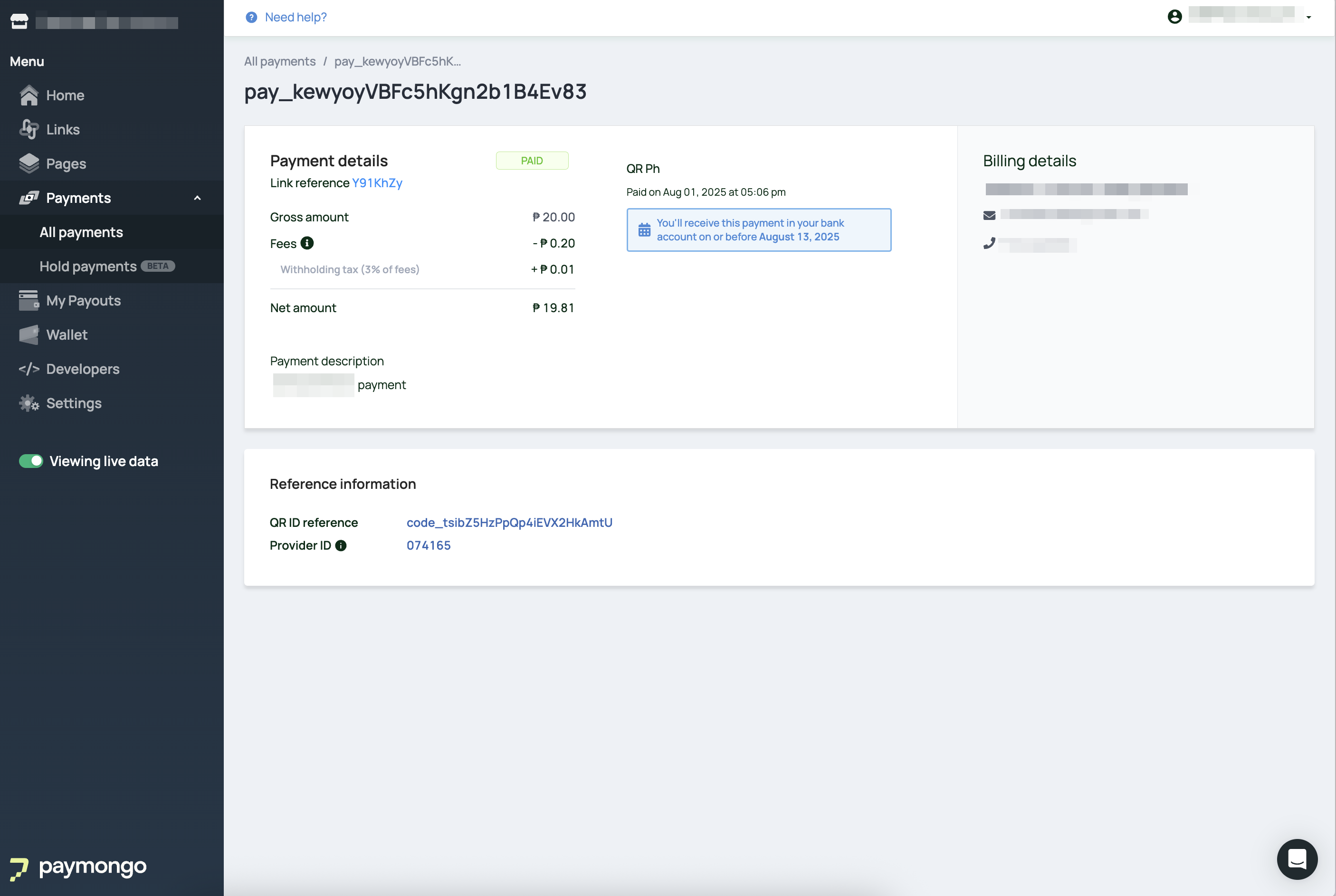
- All successful payments are reflected in the Payments module of your PayMongo dashboard in real-time.
- You can search for payments associated with a specific QR Ph code using its QR ID (found in the payment description or on the QR Ph Code details page).
- Clicking on a specific payment will show detailed information, including the QR ID reference and the Provider ID: InstaPay reference number, which is a standard reference across QR Ph banks and e-wallets, visible to both you and the customer.
Requesting an In-store QR Ph Standee
- Open your PayMongo Dashboard and go to Payment Channels Tab > In-store QR Ph.
- Click "Create QR PH Code".
- In Order a QR Standee, select "Yes, I want a QR standee delivered to my store".
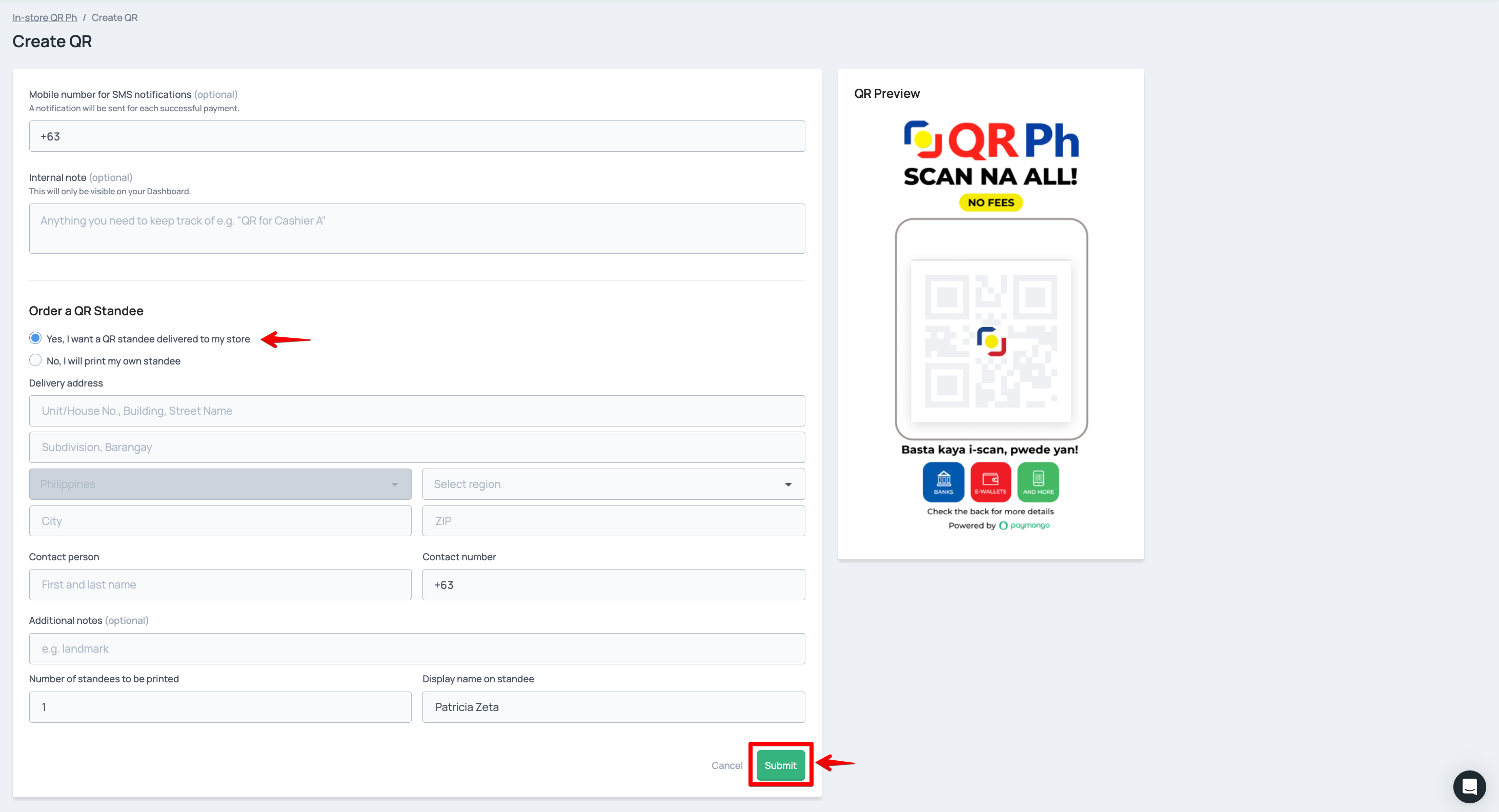
- Fill out the required fields:
- Delivery address (Unit/House No., Street, City, ZIP, Region)
- Contact person and Contact number
- Number of standees to be printed
- Display name on standee (e.g., your store name)
- Mobile number for SMS notifications and Internal note
- Review the details and click Submit.
After submission, our team will coordinate with you separately for confirmation and delivery timelines.
Updated 3 months ago