
Accessing Scores
Account configuration is required before testing transactions
If you are interested in access to this feature, please contact [email protected]!
To access the Blocked section in PayMongo Protect, follow these steps:
-
Log in to your PayMongo Merchant Dashboard.
- Go to dashboard.paymongo.com and sign in with your account credentials.
-
Access Fraud Management.
- In the main navigation menu on the left, locate and click on Fraud Management.
- This section provides an overview of PayMongo Protect and its fraud prevention features.
-
Go to the Scores Page.
- Under the Fraud Management submenu, click on Scores.
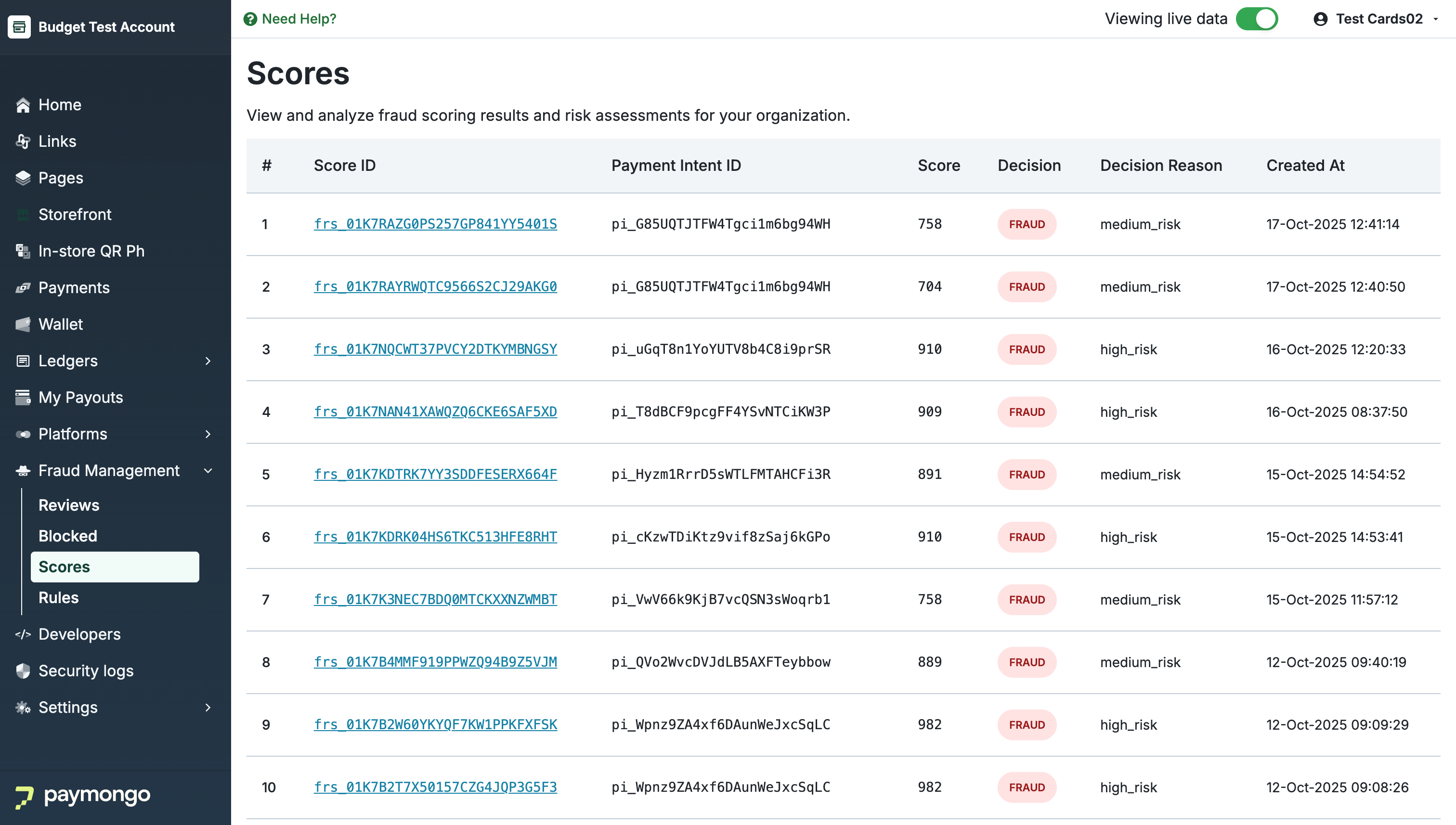
Scores list
The Scores page lists all recent risk assessments with the following key columns:
-
Score ID:
A unique identifier for each fraud risk assessment. Click on the Score ID to view detailed information about the risk evaluation for that transaction. -
Payment Intent ID:
Reference to the specific payment transaction that was assessed. -
Score:
The numeric fraud risk score (ranging from 0 to 1000) assigned to the transaction. Higher scores indicate higher fraud risk. -
Decision:
The automated decision made as a result of the risk assessment (e.g., FRAUD). -
Decision Reason:
The main reason or risk factor that led to the decision (e.g.,medium_risk,high_risk), which typically corresponds to the risk level thresholds defined for your organization. -
Created At:
The timestamp when the risk assessment was performed.
How to Use the Scores Section
-
Analyze Trends:
Monitor risk score patterns over time to uncover spikes in fraud or emerging risky behaviors. -
Investigate Transactions:
Click a Score ID to drill down into individual risk assessments and see which features or signals contributed most to the score.
Updated 6 months ago