
Team Members
Manage user access and permissions
Team Members
The Team Members section allows account owners to invite teammates, assign roles, and control permissions. Ensure every team member has the right level of access for their responsibilities.
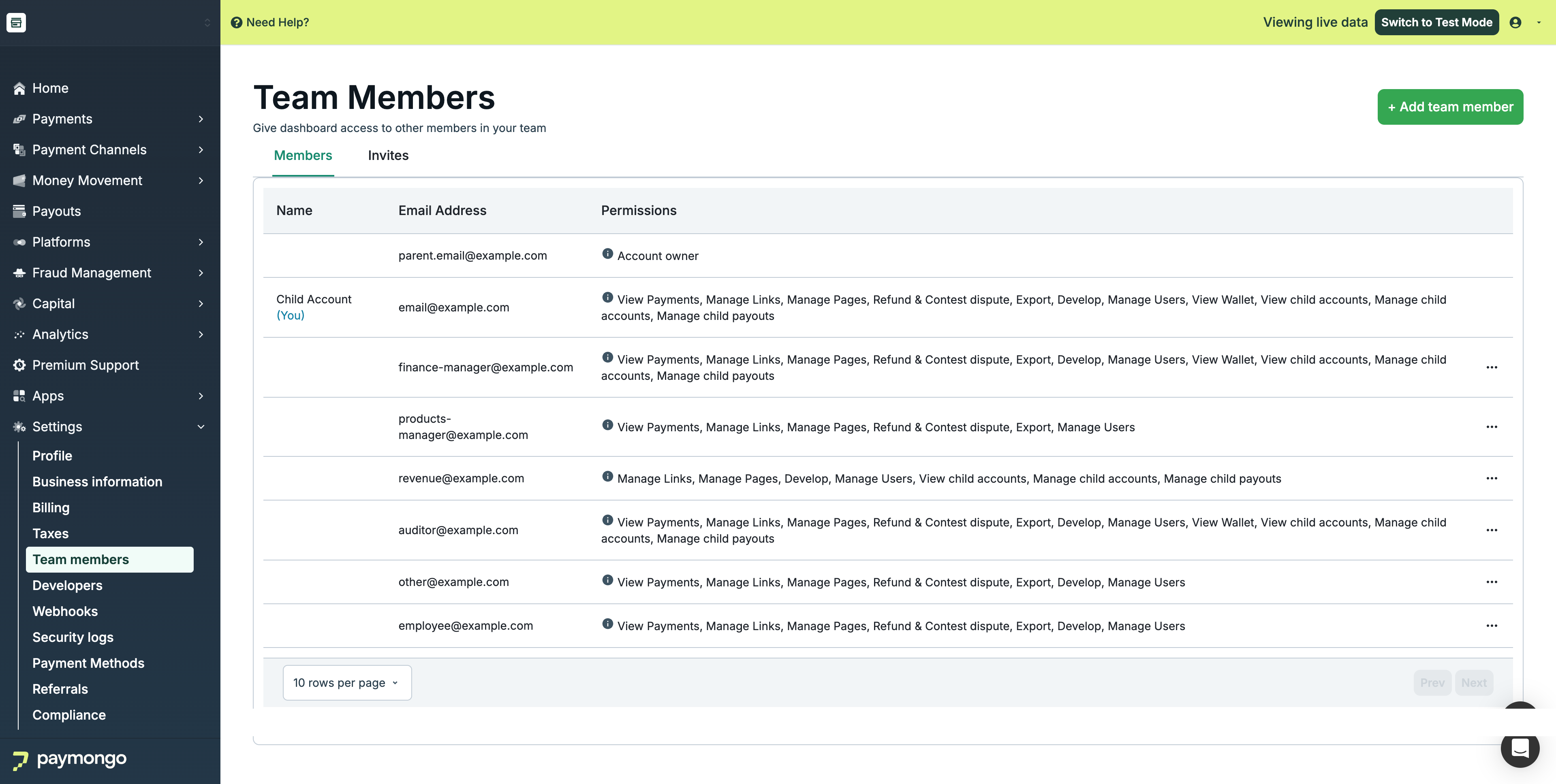
Team Members
Dashboard Overview
View all team members:
| Column | Description |
|---|---|
| Name | Team member's name |
| Email address | |
| Role | Assigned role |
| Status | Active, Pending, Suspended |
| Date Added | When they joined |
User Roles
Available Roles
| Role | Description | Access Level |
|---|---|---|
| Owner | Full access to everything | All features |
| Admin | Manage most settings | High access |
| Manager | Day-to-day operations | Medium access |
| Viewer | Read-only access | Limited |
| Custom | Specific permissions | Configurable |
Role Permissions
| Permission | Owner | Admin | Manager | Viewer |
|---|---|---|---|---|
| View transactions | ✅ | ✅ | ✅ | ✅ |
| Process refunds | ✅ | ✅ | ✅ | ❌ |
| Export data | ✅ | ✅ | ❌ | ❌ |
| Manage team | ✅ | ✅ | ❌ | ❌ |
| View API keys | ✅ | ✅ | ❌ | ❌ |
| Change settings | ✅ | ✅ | ❌ | ❌ |
| Manage payouts | ✅ | ❌ | ❌ | ❌ |
Inviting Team Members
Sending an Invite
- Click "Invite Team Member"
- Enter their email address
- Select a role
- Add optional message
- Click "Send Invite"
Invite Process
- Team member receives email
- They click the invite link
- Create their account
- Access granted based on role
Pending Invites
View and manage pending invitations:
| Action | Description |
|---|---|
| Resend | Send invite again |
| Cancel | Revoke the invitation |
| Edit | Change role before acceptance |
Managing Team Members
Changing Roles
To change a team member's role:
- Click on the team member
- Click "Edit Role"
- Select new role
- Save changes
Changes take effect immediately.
Suspending Access
To temporarily disable a user:
- Click on the team member
- Click "Suspend"
- Confirm action
The user cannot access the account until reactivated.
Removing Team Members
To permanently remove a user:
- Click on the team member
- Click "Remove"
- Confirm removal
Note: This action cannot be undone. The user loses all access.
Custom Roles
Creating Custom Roles
- Click "Manage Roles"
- Click "Create Role"
- Name the role
- Select permissions
- Save role
Permission Categories
| Category | Permissions |
|---|---|
| Payments | View, refund, export |
| Customers | View, edit, export |
| Payouts | View, manage |
| Settings | View, edit |
| Team | View, manage |
| Reports | View, export |
Activity Tracking
Viewing Activity
See what team members have done:
- Click on the team member
- View Activity tab
- See recent actions
Activity Log
| Column | Description |
|---|---|
| Date | When action occurred |
| Action | What was done |
| Details | Additional information |
| IP Address | Where from |
Best Practices
| Practice | Recommendation |
|---|---|
| Least privilege | Give minimum necessary access |
| Regular review | Audit team access periodically |
| Remove departed | Immediately remove ex-employees |
| Use roles | Standardize with role-based access |
| Monitor activity | Check security logs regularly |
Security Considerations
Access Control
- Only Owner can change Owner
- Limit Admin role to trusted individuals
- Use Viewer role for observers
Audit Trail
All team member actions are logged in Security Logs.
Two-Factor Authentication
All team members 2FA will be enabled by default on their accounts.
Feel free to reach out to [email protected] if you have questions about team management!
Updated about 1 month ago