
On-Demand Subscription Plan
Learn how to use the On-Demand Subscription feature
Account configuration is required before live transactionsWe need to configure your account before you can start accepting live payments. Kindly message [email protected] to request for key configuration. Your account's eligibility will be reviewed before you can access this feature.
On-Demand Subscription Plan only supports Maya payment method currently.
The On-Demand Subscription Plan is a feature of PayMongo's Subscription product that allows merchants to link a customer's payment method details to a plan and initiate future recurring payments on-demand.
Recurring debit logic is not maintained on PayMongo's end.Because of the on-demand nature of this feature, it is important to note that the recurring debit logic or schedule has to be maintained and developed on your end. It is your responsibility to ensure that your customers are properly informed of the payment schedule. PayMongo does not have any control on when and how much a customer is charged.
If you wish to use PayMongo's Subscription scheduler and mechanism, you may refer to this API guide.
Integrating Subscriptions through the Payment Intent Workflow
The payment intent workflow is the main workflow used to make payments via PayMongo. To enable subscriptions, a few additional steps just need to be added to the existing workflow.
1. Creating a plan
Before being able to create subscriptions, you have to first determine the subscription plans that you’re offering. Plans define the essential elements of the products like amount, currency, and cycle. Your customers’ subscriptions will then be based on the details of the plans you created.
You only need to do this during the initial integration. You do not need to create a new plan for every new subscription. 1 plan can be linked to multiple subscriptions. On a macro level, this is how it looks like:
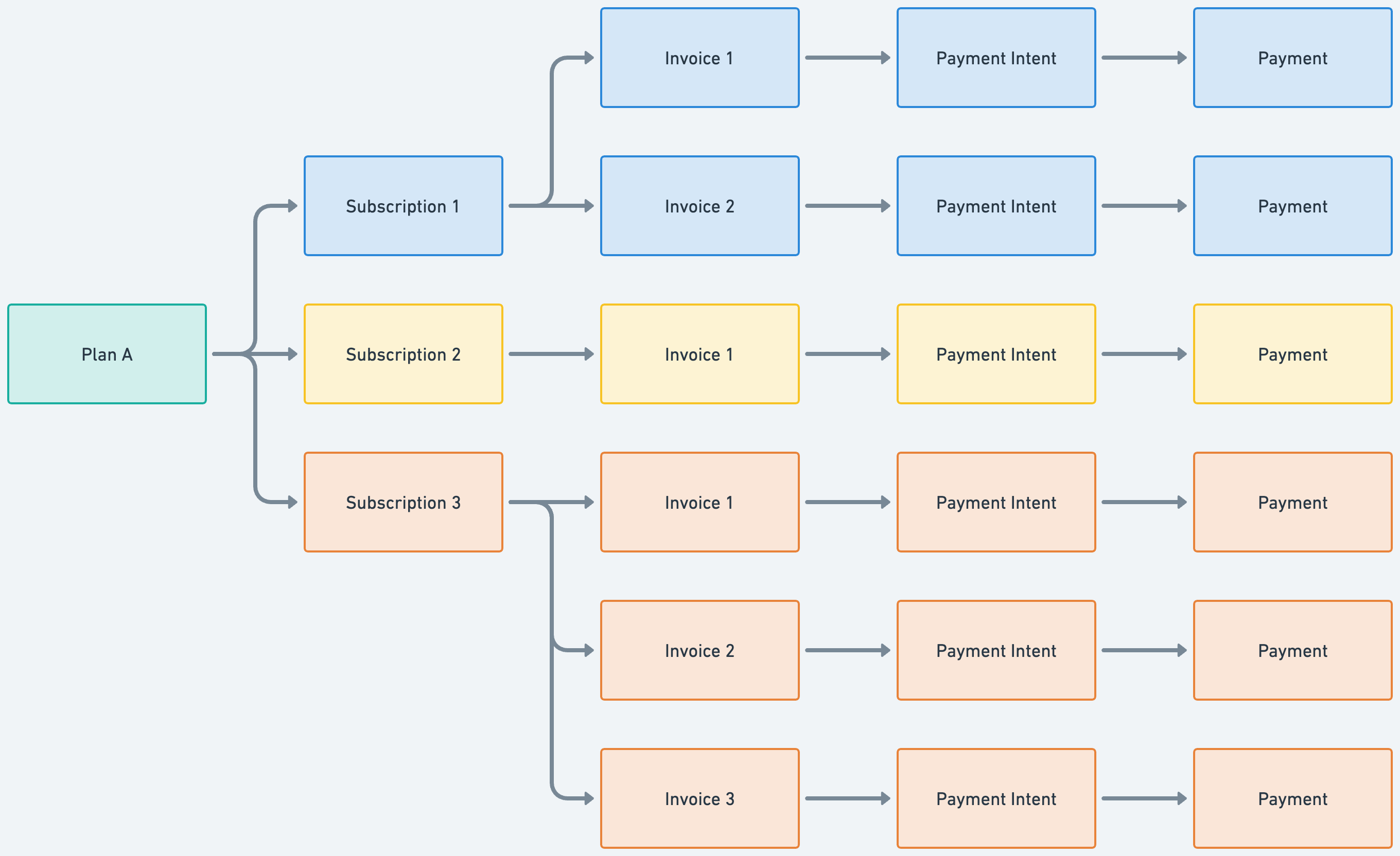
You can use the Create a Plan endpoint and send the following attributes. For On Demand Subscription plan, set the type to on_demand.
{
“name”: “Basic Plan”,
“type”: “on_demand”,
“description”: “The basic plan offers essential coverage for life’s unexpected events.”,
“amount”: “100000”,  -- for On-Demand Subscription plans, this only affects the first payment.
“currency”: “PHP”,
}Make sure to save the plan ID so you can use it when creating subscriptions on the next step!
You can update the details later on using the Update a Plan endpoint if you decide to make minor changes to the products that you’re offering. For now, you have the ability to update the plan name, description, and amount only.
Just note that for On-Demand Subscription plans, the amount only affects the first payment after the customer has authenticated the payment. The amounts of succeeding payments can be set when creating new invoices.
Take note that changing the plan details (ex. changing the name or description of the plan) will affect all the succeeding invoices for the subscriptions connected to the plan so make sure your customers are aware before applying changes to any of your existing plans! All already existing invoices will not be updated.
2. Creating a subscription
Based on the plans you offer, you can now create a subscription for your customer depending on their chosen plan. A subscription will always be linked to a plan, which contains the payment details.
-
A customer represents your customer in our database. You have to create a customer to be able to link a subscription to your customer. If the customer is an existing one, you can use the same customer ID.
-
Based on your customer’s selected plan, you can create a subscription by passing the following attributes:
{
	“customer_id”: “cus_Exy3jegPk4eEagpQcE6wnLB4”,
	“plan_id”: “plan_ajeDG2y6WgnrCXaamWFmPUw2”
}Make sure to store the Payment Intent ID (
latest_invoice.payment_intent.id) from the response, you will need this when attaching the payment method on the succeeding steps. The invoice is automatically generated by us upon successful creation of the subscription.
The creation follows the same process as normal in the PIPM workflow. For On-Demand Subscription plan, we only support Maya payment method. You have to create a new payment method for every new subscription.
The attachment follows the same process as normal in the PIPM workflow. In this step, you will pay for the latest invoice using the payment intent ID generated from Step 2.
Take note that your customer needs to make the payment within 24 hours. Otherwise, we will automatically cancel the created subscription and the subscription status will update to
incomplete_cancelled
- Redirecting the customer for authentication and first payment
The authentication follows the same process as normal in the PIPM workflow. When the first payment of the subscription is successful, a payment is created and the subscription status is updated to is active. You can now trigger future payments without the customer having to authorize each transaction by creating new invoices
Creating an Invoice and initiating an On Demand Payment
Invoices serve as a reference for the subscription payment details of a specific cycle, which are automatically generated from an active subscription. However, for On-Demand Subscription Plans, the invoices need to be triggered via the Initiate On-Demand Payment API endpoint.
Invoice Lifecycle (On-Demand Subscription Plans)
- On the first payment, an invoice is automatically generated after the subscription has been successfully created. Your customer needs to settle the invoice payment within 24 hours. Otherwise, both the subscription and invoice will be canceled.
- On the succeeding payments, an invoice needs to be created on your side via the Initiate On-demand Payment API endpoint.
- Once this is called, an invoice is created and PayMongo automatically updates the invoice
statusto open. Once the status is updated, PayMongo will attempt to pay the invoice. - PayMongo will automatically attempt to pay the invoice using the customer's saved payment method 3 times with an interval of 24 hours in between each payment attempt.
- If the payment succeeds, the invoice
statusis updated to paid and a payment ID with a paid status is generated. - If the payment fails after the 3rd attempt, the invoice
statusremains open.
- If the payment succeeds, the invoice
Canceling a subscription*
You have the ability to manually cancel a subscription at any time. You would usually use this when your customer decides to unsubscribe from the service, subscription period has lapsed, or your customer still fails to pay the latest invoice of the subscription due to problems with the payment method (e.g. expired card, insufficient funds, etc). You can use the Cancel a Subscription endpoint to do this.
Take note that once the subscription has been canceled, it will take effect immediately and no further invoices can be generated. However, if there is an existing invoice that is not paid (invoice
statusis open), you can process the manual capture of the payment using the Pay an Open Invoice endpoint.
We currently do not support prorating. The full amount of the subscription will remain charged to the customer.
Changing the subscription’s payment method*
Your customer can change the linked payment method in case it does not have sufficient funds or has expired. If this happens, your customer needs to be authenticated again.
-
The creation follows the same process as normal in the PIPM workflow. For On-Demand Subscription plan, we only support Maya payment method.
-
Update the Payment Method of the Subscription
You need to update the subscription’s payment method to the newly created payment method. If the status of the
setup_intentfrom the response is awaiting_next_action, you can proceed to the next step. Otherwise, you have to repeat Step 1.
Make sure to store the
setup_intent.next_action_url, you will need this on the next step.
3.Redirecting the customer for payment authentication
You must render the setup_intent.next_action_url so your customer can authenticate the payment. Once authenticated, the new payment method will be linked to this Subscription Plan.
For any open invoices where the subscription is past_due, unpaid or cancelled, you can collect your customer’s payment using the Pay an Open Invoice endpoint.
*Cancelling or changing the subscription plans and payment methods are steps that are optional but highly recommended.
Triggering a Test Subscription Cycle*
For test subscriptions (in test mode), you can use your test keys to simulate the whole process. You will usually use this to trigger a new subscription cycle for an existing subscription, removing the wait time dictated by the interval attribute.
Triggering a Test Subscription CycleFor test subscriptions (in test mode), you can use your test keys to simulate the whole process. Just note that Maya on-demand subscription plans are the only ones supported at the moment.
Webhook Events
Get notified when you have successful or failed subscriptions by using webhooks. To monitor the transition of the Subscriptions and Invoices from your backend, you could be notified by listening to the events by registering your webhook endpoint using our Webhook API.
WebhooksYou should not create a webhook in your code. You can try using API tools such as Postman or curl to create your webhook once. Please take note that you should not create multiple webhooks for every source that will be created. One webhook event is enough to receive the necessary information.
Events for subscription and invoices:
| Events | Description |
|---|---|
| subscription.past_due | Event is sent when the subscription’s status is updated to past_due. |
| subscription.unpaid | Event is sent when the subscription’s status is updated to unpaid. |
| subscription.activated | Event is sent when the subscription’s status is updated to active. |
| subscription.updated | Event is sent when the subscription’s status is updated to incomplete_cancelled or cancelled. |
| subscription.invoice.created | Event is sent when a new invoice was successfully created. |
| subscription.invoice.finalized | Event is sent when the new invoice has been finalized and is awaiting payment. |
| subscription.invoice.paid | Event is sent when the payment attempt for the invoice succeeded. |
| subscription.invoice.payment_failed | Event is sent when the payment attempt for the invoice failed. |
Event notifications will be sent to your registered webhook endpoint containing relevant information as shown below:
{
  "data": {
    "id": "evt_RTvNR19hqPQAroiVRmhsuFZV",
    "type": "event",
    "attributes": {
      "type": "subscription.updated",
      "livemode": true,
      "data": {
        "id": "subs_udczMB4j6VQ372yxcffhfxf8",
        "type": "subscription",
        "attributes": {
          "id": "subs_udczMB4j6VQ372yxcffhfxf8",
          "customer_id": "cus_Y4i5V1KSbrseGG9Vy91G4KCZ",
          "default_customer_payment_method_id": null,
          "livemode": true,
          "organization_id": "org_R6sN7BSxAbUsYCReUSqPKELD",
          "plan_id": "plan_6GwwfH3jp1KBuYvMykVhsQ13",
          "status": "incomplete_cancelled",
          "cancelled_at": 1701665145,
          "created_at": 1701665132,
          "next_billing_schedule": null,
          "updated_at": 1701665145
        }
      },
      "previous_data": {},
      "created_at": 1701665145,
      "updated_at": 1701665145
    }
  }
}
{
"data": {
"id": "evt_EnHxLF9penDQrmMRThnoSpkH",
"type": "event",
"attributes": {
"type": "subscription.invoice.created",
"livemode": false,
"data": {
"id": "inv_aKMe7YLGwFCJwSyvD3zVyfrY",
"type": "invoice",
"attributes": {
"amount": 2000,
"currency": "PHP",
"customer_id": "cus_sdzdd73roNFVruVZH5QLMqDm",
"description": "Sample Plan",
"livemode": false
"organization_id": "org_7Va2A48K8hwimcWGMfe5VWkP",
"resource_id": "subs_LriUbBqjmHRi77mFydg1HsV9",
"status": "draft",
"created_at": 1727798460,
"due_date": "2024-10-03",
"updated_at": 1727798460
}
},
"previous_data": {},
"created_at": 1701665145,
"updated_at": 1701665145
}
}
}{
"data": {
"id": "evt_RCTPHMPfFtyEmjBDR6DPSeFc",
"type": "event",
"attributes": {
"type": "subscription.unpaid",
"livemode": false,
"data": {
"id": "subs_SjPa6adBh64gQdyB1v5YQZpT",
"type": "subscription",
"attributes": {
"id": "subs_SjPa6adBh64gQdyB1v5YQZpT",
"customer_id": "cus_hAATBxHsb6MLZsgdkNfGDtY9",
"default_customer_payment_method_id": "cus_pm_CujGd8KQwMBqbpYM73NCPbZM",
"livemode": false,
"organization_id": "org_4WM3gAbERqiQxo6UQrbRtWLK",
"plan_id": "plan_QQuaqrFb6yfoax8nyTEcWoZQ",
"status": "unpaid",
"cancelled_at": nil,
"created_at": 1722427826,
"next_billing_schedule": "2024-10-30",
"updated_at": 1727625660
}
},
"previous_data": {},
"created_at": 1701665145,
"updated_at": 1701665145
}
}
}{
"data": {
"id": "evt_bL9GmpWm6mB3pS59sMN2NxxX",
"type": "event",
"attributes": {
"type": "subscription.invoice.paid",
"livemode": false,
"data": {
"id": "inv_hRUm1xoFfVTsh1CpLiyH6BU3",
"type": "invoice",
"attributes": {
"id": "inv_hRUm1xoFfVTsh1CpLiyH6BU3",
"amount": 2000,
"currency": "PHP",
"customer_id": "cus_sdzdd73roNFVruVZH5QLMqDm",
"description": "Sample Plan",
"livemode": false,
"organization_id": "org_7Va2A48K8hwimcWGMfe5VWkP",
"resource_id": "subs_EUA25bH8hH9DxB7U2rGxrnkw",
"status": "paid",
"created_at": 1727712060,
"due_date": "2024-10-02",
"updated_at": 1727798462
}
},
"previous_data": {},
"created_at": 1701665145,
"updated_at": 1701665145
}
}
} Updated 3 months ago