
Profile
Manage your personal account details
Profile
The Profile section allows you to manage your personal account information. Update your contact details, change your password, and configure your account preferences.
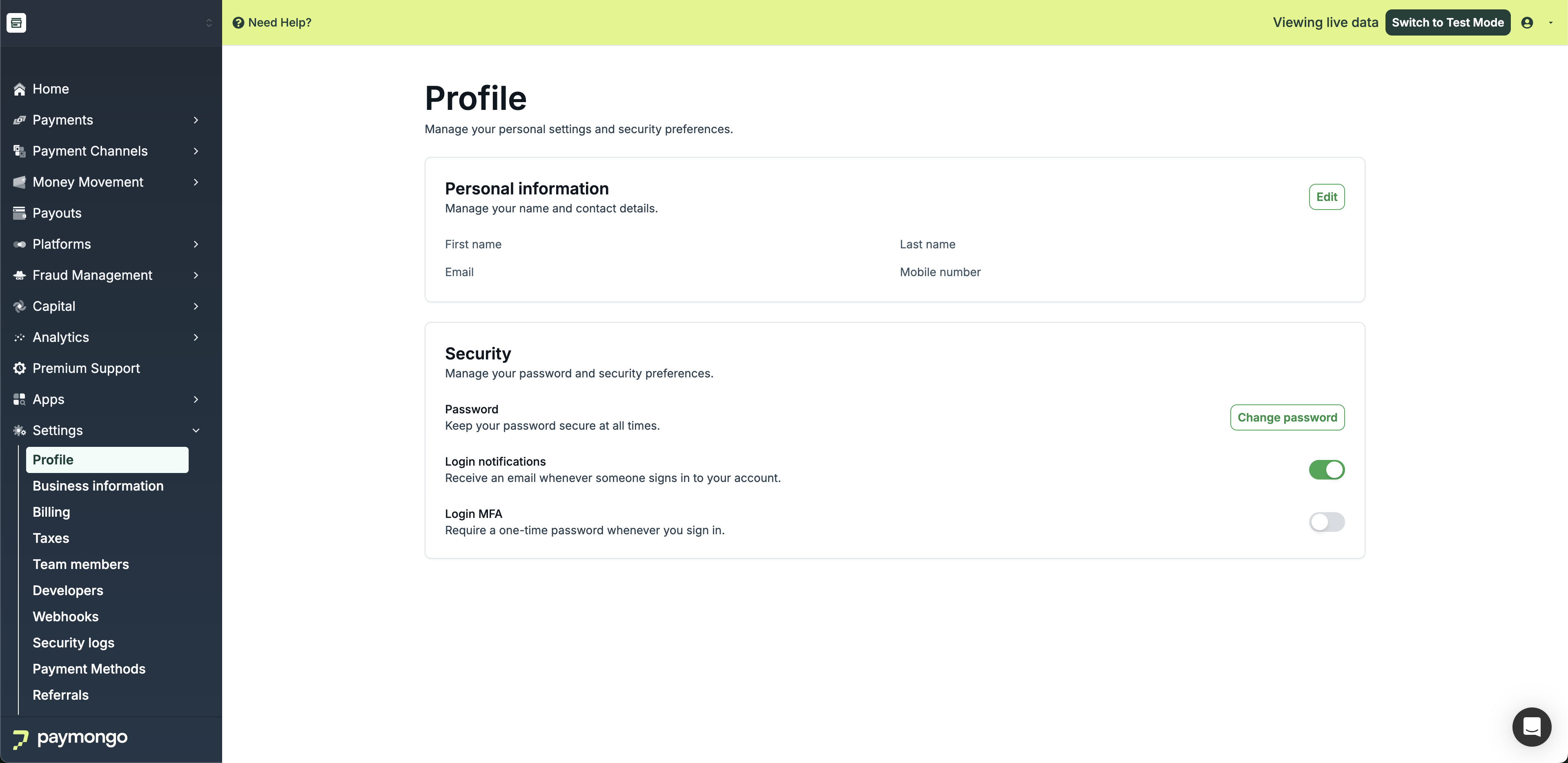
Profile
Personal Information
Viewing Your Profile
Your profile displays:
| Field | Description |
|---|---|
| Name | Your full name |
| Your email address | |
| Phone | Your contact number |
| Role | Your account role |
| Date Joined | When you created your account |
Editing Your Profile
To update your information:
- Click "Edit"
- Update the desired fields
- Click "Save"
Note: During account activation review, you may not be able to edit certain fields. Contact support if you need to make changes during this period.
Updating Contact Information
Email Address
To change your email:
- Click "Edit" next to email
- Enter new email address
- Verify with OTP sent to new email
- Confirm change
Important: Changing your email updates your login credentials.
Phone Number
To change your phone:
- Click "Edit" next to phone
- Enter new phone number
- Verify with OTP sent to new number
- Confirm change
Password Management
Changing Your Password
- Click "Change Password"
- Enter current password
- Enter new password
- Confirm new password
- Click "Update"
Password Requirements
| Requirement | Description |
|---|---|
| Length | Minimum 8 characters |
| Uppercase | At least one uppercase letter |
| Lowercase | At least one lowercase letter |
| Numbers | At least one number |
| Special | At least one special character |
Forgot Password
If you forget your password:
- Click "Forgot Password" on login
- Enter your email
- Receive reset link
- Create new password
Two-Factor Authentication
Enabling 2FA
Add an extra layer of security:
- Go to Profile settings
- Click "Enable 2FA"
- Choose method (SMS or Authenticator app)
- Complete setup
2FA Methods
| Method | Description |
|---|---|
| SMS | Code sent via text message |
| Authenticator | Code from app (Google Authenticator, etc.) |
Managing 2FA
- View backup codes
- Change 2FA method
- Disable 2FA (not recommended)
Notification Preferences
Configure how you receive notifications:
Email Notifications
| Notification | Toggle |
|---|---|
| Transaction alerts | On/Off |
| Payout notifications | On/Off |
| Security alerts | Always On |
| Marketing updates | On/Off |
| Product news | On/Off |
Push Notifications
Configure mobile notifications if using the app.
Session Management
Active Sessions
View all active login sessions:
| Column | Description |
|---|---|
| Device | Device type and browser |
| Location | Approximate location |
| Last Active | When last used |
| Status | Current session indicator |
Ending Sessions
To log out of other devices:
- View active sessions
- Click "End Session" on unwanted sessions
- Confirm logout
End All Sessions
Log out of all devices except current:
- Click "End All Other Sessions"
- Confirm action
Account Preferences
Language
Select your preferred language for the dashboard.
Timezone
Set your timezone for accurate timestamps.
Date Format
Choose your preferred date format.
Best Practices
| Practice | Recommendation |
|---|---|
| Enable 2FA | Add extra security |
| Use strong password | Follow password requirements |
| Review sessions | Check for unauthorized access |
| Keep info updated | Maintain accurate contact info |
| Secure email | Protect your login email |
Feel free to reach out to [email protected] if you have questions about your profile settings!
Updated about 1 month ago